

Before you even think about complex software tweaks or costly hardware upgrades, there are a few simple things you can do right now that often make a massive difference. These are the low-hanging fruit of computer performance—easy wins that tackle the most common culprits behind a sluggish machine.
Quick Wins for an Instantly Faster Computer
Let’s start with the basics. These are the first things I check when a client brings in a slow computer. More often than not, one of these simple fixes solves the problem without needing to go any deeper. They’re easy enough for anyone to do and can bring a machine that’s been struggling for years back to life.
Start with a Physical Clean Out
It’s amazing how many performance issues are caused by something as simple as dust. Over time, your computer’s fans pull in dust, pet hair, and all sorts of other debris. Here in Perth, our dry climate means dust can build up surprisingly fast inside both desktops and laptops.
This gunk acts like a blanket, trapping heat and forcing your CPU and graphics card to run hotter than they should. To protect themselves from damage, these components automatically slow down—a safety feature called thermal throttling. The result? A computer that feels frustratingly slow, especially when you’re trying to multitask or run demanding software.
Giving your machine a proper clean can work wonders for cooling and performance. For some immediate ideas, you can find several quick fixes for a slow computer that really help. We’ve also put together a detailed guide on how to clean a computer from dust to walk you through the process safely.
Tame Your Startup Programs
Does your computer take forever to be ready to use after you turn it on? The problem is likely too many programs launching themselves automatically every time you boot up. From cloud storage clients to messaging apps, many install themselves to run in the background from the get-go.
Each of these programs eats up precious RAM and CPU power, making your boot time drag on and leaving fewer resources for the things you actually want to do. Taking control of what runs at startup is one of the most effective ways to reclaim that lost speed.
- On Windows: Press Ctrl+Shift+Esc to open the Task Manager and click on the "Startup" tab. You'll see a list of everything that launches with your system. Just right-click and disable anything you don’t need running right away.
- On macOS: Head to System Settings > General > Login Items. Look under the "Open at Login" section and use the minus (-) button to remove any apps you'd rather open manually.
A clean startup is a fast startup. Disabling just a few unnecessary programs can shave significant time off your computer's boot process and make it feel more responsive from the moment you log in.
Scan for Viruses and Malware
If your computer has suddenly become slow for no apparent reason, malware could be the culprit. Viruses, spyware, and adware love to run hidden processes in the background, chewing up system resources, tracking your activity, or just getting in the way.
Here in Perth's northern suburbs, from Balga to Karrinyup, a slow computer is a top complaint we hear from everyone. With over 82% of Australians using a computer daily, a sluggish machine isn't just an annoyance; it’s a major block to productivity. A lot of the computers bought during the 2020-2021 boom are now starting to show their age, and we often find it's a mix of dust, sneaky malware, and outdated software.
Based on our experience at CTF Repairs, a professional tune-up can boost boot times by up to 50%. A thorough scan is the first step. Don’t just rely on a single scan, either. It’s a good idea to run a full scan with a reputable antivirus program, then follow it up with a specialised anti-malware tool to catch anything the first one might have missed.
Before diving into more advanced solutions, start with these simple yet powerful actions. Here's a quick summary of what we've just covered.
Quick Performance Fixes At a Glance
| Action | What It Does | Estimated Time | Potential Speed Boost |
|---|---|---|---|
| Physical Cleaning | Removes dust to improve cooling and prevent overheating. | 15-30 minutes | Moderate to High |
| Disable Startup Apps | Frees up RAM and CPU resources for a faster boot time. | 5-10 minutes | Moderate |
| Malware Scan | Removes resource-hogging malicious software. | 30-60 minutes | Moderate to High |
Tackling these three areas first will often give you the most noticeable improvement for the least amount of effort. If your computer is still slow after trying these fixes, it's time to look at software and hardware solutions.
Diving into Software for a Serious Performance Boost
With the physical dust gone, it's time to tackle the digital clutter. Think of your computer's software like a workshop—over time, it gets filled with old projects, unused tools, and leftover scraps that get in the way. A proper software clean-up is one of the most effective things you can do to get your machine running smoothly again.
This isn't just about emptying the Recycle Bin. We're talking about a systematic approach to updating your system's core components, clearing out accumulated junk files, and making sure every program installed is one you actually need. A clean, up-to-date system isn't just faster; it's a whole lot more secure, too.
Keep Your System and Drivers Up to Date
It’s tempting to hit "Remind me later" on those update notifications, but this is one of the simplest ways to let performance slip. Operating system updates from Microsoft and Apple aren't just about new features; they often contain critical performance tweaks, bug fixes, and security patches that keep your machine running efficiently. An outdated OS is often a slow and vulnerable one.
Just as important are your device drivers. These are the tiny bits of software that let your operating system talk to your hardware—your graphics card, printer, Wi-Fi, you name it. Manufacturers constantly release new drivers to improve stability and performance. An old graphics driver, for instance, is a classic cause of stuttering and lag in games or video editing software.
- For Windows: Head to Settings > Update & Security > Windows Update and hit "Check for updates." It's also worth checking the "Optional updates" section for any new drivers.
- For macOS: Pop open System Settings > General > Software Update to find and install the latest version of macOS.
Clear Out the Digital Junk with Disk Cleanup
Your computer is a packrat. It's constantly creating temporary files from web browsing, software installations, and system reports. While tiny on their own, these files can snowball into gigabytes of wasted space, making your hard drive work much harder to find the files you actually need.
Luckily, both Windows and macOS have handy built-in tools for this kind of digital housekeeping.
- On Windows: Just search for "Disk Cleanup" from the Start Menu. Select your main drive (usually C:) and let it do a quick scan. You can safely tick the boxes for things like "Temporary Internet Files," "Recycle Bin," and "Thumbnails" to free up a surprising amount of space.
- On macOS: Go to the Apple menu > About This Mac > Storage > Manage. This opens up a fantastic utility that gives you clear options to get rid of clutter and optimise your storage.
Make a habit of running a disk cleanup once a month. It’s a five-minute job that stops the slow, creeping build-up of digital gunk that silently strangles your computer's responsiveness.
Uninstall Programs You Don't Use
Remember that photo editor you installed for one project two years ago? Or that game you tried once and forgot about? These aren't just dormant icons. Unused applications can still run processes in the background, check for updates, and take up precious disk space.
Take a moment to scroll through your list of installed applications. If you don't recognise something or haven't opened it in the last six months, it’s probably safe to get rid of it. This simple act of decluttering not only frees up resources but also reduces your system's "attack surface" by removing old, unpatched software.
If you find a program you don't recognise and a virus scan flags it as suspicious, our guide on how to remove a virus from your computer can help you figure out what to do next.
The Last Resort: A Fresh Operating System Reinstall
Sometimes, after years of use, a computer's software becomes so tangled with registry errors, conflicting files, and remnants of old programs that no cleanup tool can truly fix it. If you’ve tried everything and your machine is still crawling, the ultimate fix might be a full operating system (OS) reinstall.
This is the 'nuke it from orbit' option. It wipes the slate clean and returns your computer to a factory-fresh state. Because this process will erase all your files, a complete and verified backup is absolutely essential before you even think about starting. While it’s definitely a more involved process, a fresh OS install is often the single most effective way to kill persistent software gremlins and restore your computer to its original speed.
Choosing Hardware Upgrades That Actually Matter
So, you’ve done all the software tweaks and your computer is still lagging. It’s time to look under the bonnet. Popping the case open and making a few strategic hardware upgrades can give you the biggest performance boost imaginable, often making an old machine feel brand new for a fraction of the cost of buying a new one.
It’s all about putting your money where it counts. Instead of getting bogged down in technical jargon, let’s focus on the two upgrades that deliver a massive, noticeable impact for almost everyone: adding more RAM and swapping your old hard drive for a Solid-State Drive (SSD). These are the true game-changers.
Is Your Computer Starving for Memory?
Think of RAM (Random Access Memory) as your computer’s workbench. Every application, every browser tab, every document you have open takes up space on that workbench. When it gets too crowded, your computer has to start shuffling things off to your main storage drive—a process called “swapping”.
That’s when everything grinds to a halt. Even the fastest storage drive is painfully slow compared to actual RAM, which leads to that frustrating lag and stutter you feel when you’re trying to multitask.
Not sure if this is your problem? Here are the tell-tale signs:
- Things get sluggish the moment you have a few browser tabs, a Word doc, and Spotify running at the same time.
- Programs hang or freeze for a few seconds when you switch between them.
- Your machine chokes when you try to work with big files, like high-res photos or video clips.
For most people, 16GB of RAM is the sweet spot for a smooth, responsive experience. While 8GB can still get the job done, it's really the bare minimum these days. If you’re coming from 8GB, jumping to 16GB will feel like night and day.
The Single Best Upgrade: A Solid-State Drive
If you can only make one upgrade, make it this one. For years, computers relied on Hard Disk Drives (HDDs), which are basically tiny, spinning record players. A physical arm has to literally find your data on a spinning platter, and that mechanical movement takes time.
An SSD, on the other hand, is pure electronics with no moving parts. It uses flash memory, just like a USB stick, to access data almost instantly. The real-world difference is staggering.
I can't stress this enough: switching from an old HDD to an SSD is the most profound performance upgrade you can make. Your computer will boot in seconds, programs will snap open, and the whole system will feel alive and responsive again.
To put it in perspective, a typical old-school HDD has read/write speeds of around 100-150 MB/s. A standard modern SSD is four to five times faster, and the newer NVMe SSDs can be over 30 times faster. This isn't just a small tweak; it completely transforms your daily experience.
Upgrading Your Hardware in Perth
Here in Perth’s northern suburbs, from Kingsley to Balga, we see a lot of computers bought during the 2020-21 pandemic rush that are now starting to feel their age. Gamers especially feel the pinch when new titles—and even retro emulators—demand more and more resources.
While about 70% of the tune-ups we do at CTF are software-based fixes like virus removals, a smart hardware upgrade is often the crucial next step. Just recently, a gamer from Marangaroo brought in an Xbox-linked PC from 2020 that was struggling to hit 20 FPS. After a software clean-up, we saw that a simple 8GB RAM upgrade was possible, which got them running at a silky-smooth 60 FPS.
With Aussies spending an average of 3 hours and 7 minutes a day on their desktops and tablets, as shown in DataReportal's Digital 2025 Australia report, getting that performance back makes a real difference to your day.
Deciding whether to do it yourself or call in a pro really comes down to your comfort level. Slotting in new RAM is often quite simple, but cloning your old drive to a new SSD and swapping it out can get tricky. If you’re not sure about what parts are compatible or how to handle the installation, it's always best to get expert advice. At CTF Mobile Phones & Computer Repairs, we can find the right parts for your machine and budget, ensuring you get a seamless upgrade that keeps your computer flying for years to come.
Playing Detective: Figuring Out Why Your Computer Is So Slow
Feeling lost trying to figure out what's bogging down your computer? Before you start uninstalling programs or looking at new hardware, you need to put on your detective hat. The first, and most important, step is to figure out why your computer is struggling.
Jumping straight to a "fix" without knowing the cause is a good way to waste time and money. By asking the right questions, you can match the symptoms to the likely culprit, which means you can apply the right solution and get your machine running smoothly again.
Your Own Tech Investigation
Start by paying close attention to how your computer is behaving. Don't just settle for "it's slow"—get specific. The little details are the clues that will point you straight to the root of the problem.
Here’s what to look out for:
- When does it slow down? Is it sluggish from the moment you turn it on, or does it only start lagging when you're doing something specific, like opening too many browser tabs or editing a video?
- What are the physical signs? Can you hear the fan whirring away constantly at full speed? Does the computer's case feel hotter than usual? These are tell-tale signs of overheating.
- How much storage is left? Take a peek at your main drive (usually the C: drive). If it has less than 15-20% free space, your operating system won't have the room it needs to breathe, causing a serious slowdown.
The answers to these questions will help you narrow things down. For instance, a computer that’s slow from the get-go might be dealing with a virus or a failing hard drive. On the other hand, if it only struggles under a heavy workload, it’s probably crying out for more RAM or an updated graphics driver.
Matching Symptoms To Likely Causes
Once you've gathered a few clues, you can start to connect the dots. Different symptoms often point to very different problems, and identifying the right one is key to finding a solution that actually works.
To help you figure out what your slow computer might be trying to tell you, we've put together this simple symptom checker.
Symptom Checker: What Your Slow Computer Is Telling You
| Symptom | Possible Cause | Recommended Action |
|---|---|---|
| Slow boot-up and general sluggishness | Too many startup programs, old hard drive, malware | Disable unnecessary startup apps, run a virus scan, consider an SSD upgrade. |
| Computer is noisy and feels hot | Dust buildup, failing fan, poor ventilation | Clean internal components (especially fans and vents), ensure proper airflow. |
| Programs freeze or crash often | Insufficient RAM, software conflicts, outdated drivers | Close unused programs, update drivers, consider a RAM upgrade. |
| Specific applications run poorly | Outdated software/drivers, not enough RAM/VRAM | Update the specific program and your graphics drivers, check system requirements. |
| Internet browsing is very slow | Malware/adware, too many browser extensions | Scan for malware, disable unnecessary extensions, clear browser cache. |
This table should give you a solid starting point for your investigation. By matching what you’re experiencing with a potential cause, you can move forward with a targeted fix.
You can also find more in-depth information in resources like this one: 10 Reasons Your Computer Is Slow & How To Fix It. It’s a great read if you want to dig a little deeper into common performance issues.
Our Expert Take: Pinpointing the specific cause of a slowdown is half the battle. A computer that's noisy and hot needs a physical clean-out, while one that freezes when multitasking is likely crying out for a RAM upgrade. Don't treat the symptom; fix the cause.
If you’ve done a bit of digging and suspect your hardware just isn't cutting it anymore, this simple flowchart can help you decide on the next step.
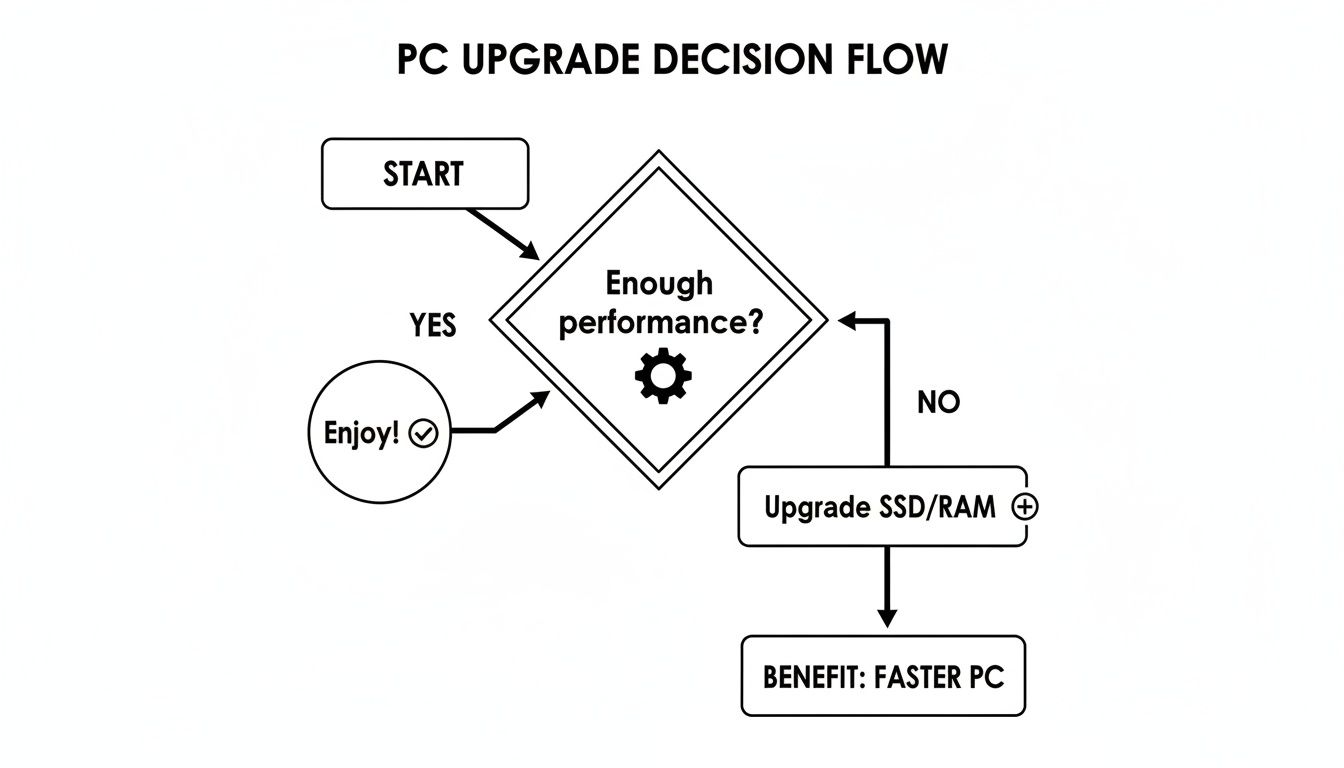
As the chart shows, if software tweaks haven't delivered the speed you need, upgrading your SSD or RAM is often the most direct path to a much faster computer.
Working through your computer's issues methodically like this stops the guesswork. You’ll be making targeted, effective improvements instead of trying random fixes and hoping for the best. And if you’ve tried these steps and you’re still stumped? That's the perfect time to bring it to us for a professional look.
Knowing When to Call in the Professionals
The DIY spirit is fantastic, and as we've walked through, there's a lot you can do to speed up your computer on your own. From a good clean-out to a fresh operating system install, these steps can often breathe new life into a sluggish machine. But there's a point where tinkering further can do more harm than good.
Honestly, knowing your limits is just as important as knowing how to troubleshoot. Some problems are just symptoms of a much deeper issue—one that really needs specialised tools, diagnostic software, and years of hands-on experience to fix properly. Pushing ahead without that expertise can quickly turn a recoverable situation into a complete disaster.
Recognising these red flags is the key to protecting your computer, and more importantly, your precious data from accidental, permanent damage.
Critical Signs You Need an Expert Immediately
Some issues aren't subtle hints; they're loud, clear warnings that something is seriously wrong. If you run into any of these, my best advice is to stop what you're doing and unplug the machine. Don't be tempted to turn it back on, as each power-up could genuinely be its last.
These are the scenarios where getting professional help isn't just a good idea—it's non-negotiable.
- The Click of Death: If your computer is making any repetitive clicking, grinding, or buzzing noises, that's often the death rattle of a mechanical hard drive. It means the internal parts are physically failing. Every second it runs, the read/write heads are likely scraping across the platters, literally shredding your data into oblivion.
- No Signs of Life: You hit the power button and… nothing. No lights, no fan spin, no beeps. This usually points to a failure in the power supply unit (PSU) or the motherboard. Diagnosing this involves testing individual components with specific gear to find the fault without accidentally frying everything else.
- The Blue Screen of Death (BSOD): A one-off blue screen might just be a driver glitch, but if they keep happening randomly, you’ve got a severe problem. It could be failing RAM, a corrupted operating system, or a motherboard issue. A professional technician can run advanced diagnostics to pinpoint the exact culprit.
- A Stubborn Virus Infection: You've run every antivirus and anti-malware scan you can think of, but the pop-ups, weird behaviour, and slowdowns just won't quit. Some advanced malware is brilliant at hiding from consumer-grade software and needs to be dug out manually by an expert to get rid of it completely without wiping your entire system.
When your computer won't turn on or your hard drive is making strange noises, the most important fix is to stop trying to fix it yourself. The risk of permanent data loss is extremely high, and this is the moment to call for professional help.
Beyond Emergencies: The Benefits of a Professional Service
Even when it’s not a full-blown crisis, calling in an expert is often the smarter, safer, and more effective choice. It’s about getting the job done right the first time, with a guarantee to back it up.
Think of it as the difference between giving your car a quick rinse with the hose versus getting it professionally detailed.
Deep Physical Cleaning
A quick blast with a can of air is one thing, but a professional deep clean is on another level. At CTF Computer Repairs, we’ll safely dismantle your computer, clean every fan individually, clear out all the dust caked onto the heat sinks, and even re-apply fresh thermal paste to the CPU. This isn't just for looks; it's preventative maintenance that stops long-term heat damage and makes sure your components run at their best for years to come.
Guaranteed Hardware Upgrades
Trying to pick the right RAM or SSD can be a minefield of different speeds, form factors, and compatibility issues. We make sure you get parts that are 100% compatible with your motherboard, handle the installation safely, and clone all your data to the new drive without a hitch. Here in our Balga workshop, we do this for customers from all over Perth, including Karrinyup and Westminster, providing a warrantied upgrade that takes all the guesswork out of it.
Secure Data Recovery
If your computer has died and you desperately need the files back, professional data recovery is your only truly safe bet. Trying to recover data from a failing drive yourself often makes the problem much worse. Technicians use cleanroom environments and highly specialised hardware to pull files from dead laptops, clicking hard drives, and corrupted USBs. If you find yourself in this situation, you can learn more about our reliable data recovery in Mirrabooka and see how expert solutions can save your critical information.
For locals in Girrawheen, Balcatta, and the surrounding northern suburbs, bringing your device to CTF Mobile Phones & Computer Repairs is all about peace of mind. You’ll get a clear diagnosis, a transparent quote, and service backed by a solid warranty. Instead of spending hours getting frustrated, you can trust that your computer is in expert hands, getting the precise fix it needs to run faster and last longer.
Common Questions About Speeding Up Your PC
Even after going through a guide, it’s natural to have a few lingering questions. Let's dig into some of the most common ones we hear from our customers right here in Perth. These are the practical, real-world queries that pop up when you start trying to get your machine back up to speed.
Getting the right answers can save you a lot of time and help you avoid some common mistakes.
How Often Should I Physically Clean My Computer?
That’s a great question, and honestly, it depends entirely on your environment. For most people with a computer at home in a fairly clean house, giving it a good internal dust-out once a year is plenty to keep it from overheating.
But, if you've got pets who shed, live somewhere particularly dusty, or smoke near your computer, you should probably aim for every six months. A machine in a busy office or a workshop? That might need a look-in every three months. The main thing is to get ahead of the problem—don't wait until your fans sound like a jet engine taking off.
A clean computer is a happy computer. It's one of the cheapest and most effective bits of maintenance you can do to keep your machine running cool and fast.
Will More RAM Always Make My Computer Faster?
Not always. More RAM is only a magic bullet if your computer is actually running out of it. Think of it like this: adding more lanes to a motorway only helps clear a traffic jam. If you’ve only got a couple of cars on the road, the extra lanes won't make them go any quicker.
You can check this yourself. Open up Task Manager on Windows (or Activity Monitor on a Mac) and have a look at your memory usage. If you see it constantly sitting above 85-90% during your typical tasks, then a RAM upgrade will probably feel like a night-and-day difference. If it's just cruising along at 50%, your performance bottleneck is likely somewhere else—an old hard drive is a common culprit.
Is It Safe to Use PC Cleaning Software?
This is a tricky one. While there are a few legitimate "PC cleaner" tools out there, the market is absolutely flooded with programs that are useless at best and downright malicious at worst. Many of them rely on scare tactics, flagging thousands of "errors" that are completely harmless, just to pressure you into buying the full version.
Worse still, some of these dodgy cleaners can accidentally delete critical system files, leaving your computer unstable or, in the worst-case scenario, unable to boot at all.
My advice? Just stick to the tools already built into your operating system, like Windows Disk Cleanup. They’re safe, they work, and they won't try to sell you anything. If you think there’s a deeper software issue, you're far better off talking to a professional than trusting some random program you found online.
What’s the Real Difference Between a Restart and a Shutdown?
In modern Windows, the difference is massive. When you click "Shut down," a feature called Fast Startup kicks in, saving a snapshot of your system so it can boot up quicker next time. The catch is that it doesn't fully clear out the system memory or properly close every single process.
"Restart," on the other hand, forces a complete shutdown of everything and a genuinely fresh start for the operating system. If your computer starts acting sluggish or behaving strangely after being on for a while, always choose Restart. It's the proper way to flush out any software gremlins and memory leaks that have built up over time.
If you've given these tips a go and your computer is still giving you grief, or you’d just rather an expert handle it, the team at CTF Mobile Phones & Computer Repairs is here to help. From professional deep cleaning to guaranteed hardware upgrades, we provide reliable, warrantied service for Perth locals. Visit us online to see how we can get your computer running like new again.