

Before you start pulling your hair out or throwing your laptop at the wall, let's take a breath and figure out what’s actually going on. A slow laptop is just a symptom; we need to find the cause.
Jumping straight into complex fixes without knowing the problem is a bit like trying to fix a car without even lifting the bonnet. More often than not, a few simple checks can point you right to the culprit.
Diagnosing Your Slow Laptop Without Technical Jargon

The good news is that you don't need to be a computer wizard to do some basic detective work. Your laptop already has all the tools you need to get a clear picture of what’s eating up its resources.
Your System's Built-In Investigator
Your first stop should always be the system monitor. Think of it as a dashboard showing you exactly what your laptop is doing in real-time.
- On a Windows PC: Hit
Ctrl + Shift + Escto pull up the Task Manager. - On a Mac: Find the Activity Monitor in your Utilities folder.
Once you have it open, focus on the CPU, Memory (RAM), and Disk columns. If you see any of these numbers consistently maxed out—say, hanging around 80-100%—you've found a major clue. Click the column header to sort by the highest usage, and you’ll see the main offender right at the top.
Sometimes it’s an obvious one, like a web browser groaning under the weight of 50 open tabs. Other times, the culprit is less obvious. I’ve seen cloud services like Dropbox or OneDrive bring a machine to its knees while trying to sync thousands of tiny files.
If you spot unfamiliar processes hogging resources, it could be a red flag for something more sinister. Malware often runs quietly in the background, slowing everything down. Our guide on how to remove a virus from your computer can walk you through checking for and dealing with that.
Pro Tip: Before you force-quit the application that's causing trouble, make sure you save your work! A better first step is to simply try restarting that specific program. If it misbehaves every single time, you might need to look for an update or find a lighter alternative.
Here's a quick rundown of these initial checks to get you started.
Quick Diagnostic Checklist for a Slow Laptop
This table summarises the first few things you should always check. They’re quick, easy, and can often solve the problem without any deep-diving.
| Action Item | What It Does | Time to Complete | Potential Speed Improvement |
|---|---|---|---|
| Check Task Manager/Activity Monitor | Identifies specific apps hogging CPU, RAM, or disk. | 2-5 minutes | High |
| Restart the Laptop | Clears temporary files and closes stuck processes. | 2-3 minutes | Medium to High |
| Review Startup Programs | Stops non-essential apps from launching at boot. | 5 minutes | Medium |
| Check for Unfamiliar Processes | Helps spot potential malware or hidden software. | 5-10 minutes | High |
Following these steps gives you a solid foundation for understanding what’s really going on with your machine.
The Power of a Fresh Start
Seriously, don't underestimate this one. "Have you tried turning it off and on again?" is a cliché for a reason—it works!
A full shutdown and restart clears out temporary data, ends those annoying background processes that refuse to close, and gives your system’s memory a completely clean slate. Just remember, closing the lid usually just puts your laptop to sleep, which isn’t the same as a proper restart.
Finally, take a look at what programs launch the moment you turn your computer on. A long line of applications all trying to start at once is a classic recipe for a painfully slow boot-up. You can easily manage these in the "Startup" tab in Windows Task Manager or under "Login Items" in System Settings on a Mac. Be ruthless! If you don't need it running right away, disable it. You'll be surprised at how much faster your laptop feels from the get-go.
Clearing Out Digital Clutter for an Instant Speed Boost
Over time, your laptop’s digital workspace gets just as cluttered as a workshop bench. It accumulates all sorts of junk—unused programs, forgotten temporary files, and sometimes even hidden malware—that slowly but surely grinds your performance to a halt. One of the most effective things you can do for a speed boost is a thorough digital clean-up.
Think about all the software that was on your machine when you first bought it. We call this bloatware, and a lot of it runs silently in the background, chewing up memory and CPU power without you ever touching it. The same goes for that one-off program you installed for a project months ago and completely forgot about.
Banish Unused Software and Bloatware
The first job is to do a quick software audit. It’s time to be ruthless. Go through your list of installed applications and ask yourself what you actually use.
- On a Windows PC: Head into
Settings > Apps > Apps & features. I find it helpful to sort the list by size or install date—it often highlights big, forgotten programs right away. - On a Mac: It’s as simple as opening your
Applicationsfolder in Finder. Just drag any apps you no longer need straight to the Trash.
Some of that pre-installed bloatware can be tricky to remove through the normal process. A quick search for your laptop model plus "remove bloatware" usually turns up a guide from someone who’s already figured it out. You’d be surprised how much of a difference getting rid of just a few of these programs can make.
Wipe Away System Junk and Temporary Files
Everything you do on your laptop, from browsing a website to opening a document, creates temporary files. These are supposed to be deleted automatically, but they have a bad habit of sticking around, clogging up your storage and slowing things down.
Luckily, both Windows and macOS have great built-in tools for this. On Windows, just search for Disk Cleanup, select your main drive (usually C:), and let it scan for junk you can safely delete. For Mac users, go to the Apple menu, click About This Mac > Storage > Manage, and follow the recommendations to clear out the clutter.
A slow laptop doesn't always mean it's time for a replacement. Often, the root cause is something simple. We see it all the time here at our Balga workshop—laptops bogged down by dust-clogged fans or bloated software. A quick physical clean and a performance tune-up can often fix these issues the same day. At CTF, we've seen countless laptops revived this way, with speeds boosted by up to 50% after a good clean. Don't toss it; bring it to us for fast, reliable Perth service that keeps your wallet happy and e-waste low. You can discover more insights about the computer repair industry and its impact on sustainability.
Rooting Out the Hidden Threat of Malware
Finally, no digital decluttering session is complete without a proper malware scan. Malicious software is a notorious resource hog, often designed to run secretly in the background while it spies on you, mines cryptocurrency, or floods you with ads. These hidden processes can devour a massive chunk of your laptop's processing power.
Even if you have an antivirus running, it’s always a good idea to perform a full, deep scan periodically. Use the built-in Windows Defender or a trusted third-party tool like Malwarebytes. Getting a clean bill of health here ensures no hidden programs are sabotaging your hard work. This digital spring clean is all about reclaiming your storage and processing power, giving you an immediate and very satisfying speed boost.
Hardware Upgrades That Can Breathe New Life Into an Old Laptop
If you’ve gone through all the software fixes and your laptop still feels like it’s wading through mud, it might be time to look under the hood. Software tweaks are great, but they can only do so much, especially when an older machine is trying to keep up with modern, resource-hungry programs. Often, a targeted hardware upgrade is the single best way to make an old laptop feel brand new again.
When it comes to getting the most bang for your buck, two upgrades stand out above the rest: adding more RAM and, most importantly, swapping that old mechanical hard drive for a Solid-State Drive (SSD).
An SSD Upgrade Is the Real Game-Changer
Picture this: you press the power button, and your laptop is ready to go in less than 20 seconds. No more waiting several minutes for the desktop to appear and programs to become responsive. That’s the real-world difference an SSD makes.
A traditional Hard Disk Drive (HDD) is a bit like a tiny record player, with a spinning platter and a mechanical arm that has to physically find your data. It’s old technology and a major bottleneck. An SSD, on the other hand, uses modern flash memory with no moving parts, making it phenomenally faster.
This single upgrade transforms everything. Programs launch almost instantly, big files open in a snap, and the whole system just feels incredibly responsive. To really grasp the impact, it’s worth understanding the core advantages of a SSD, which go beyond just speed to include durability and efficiency.
Sometimes, it's digital clutter that makes a system feel so slow it seems like a hardware problem is the only answer.
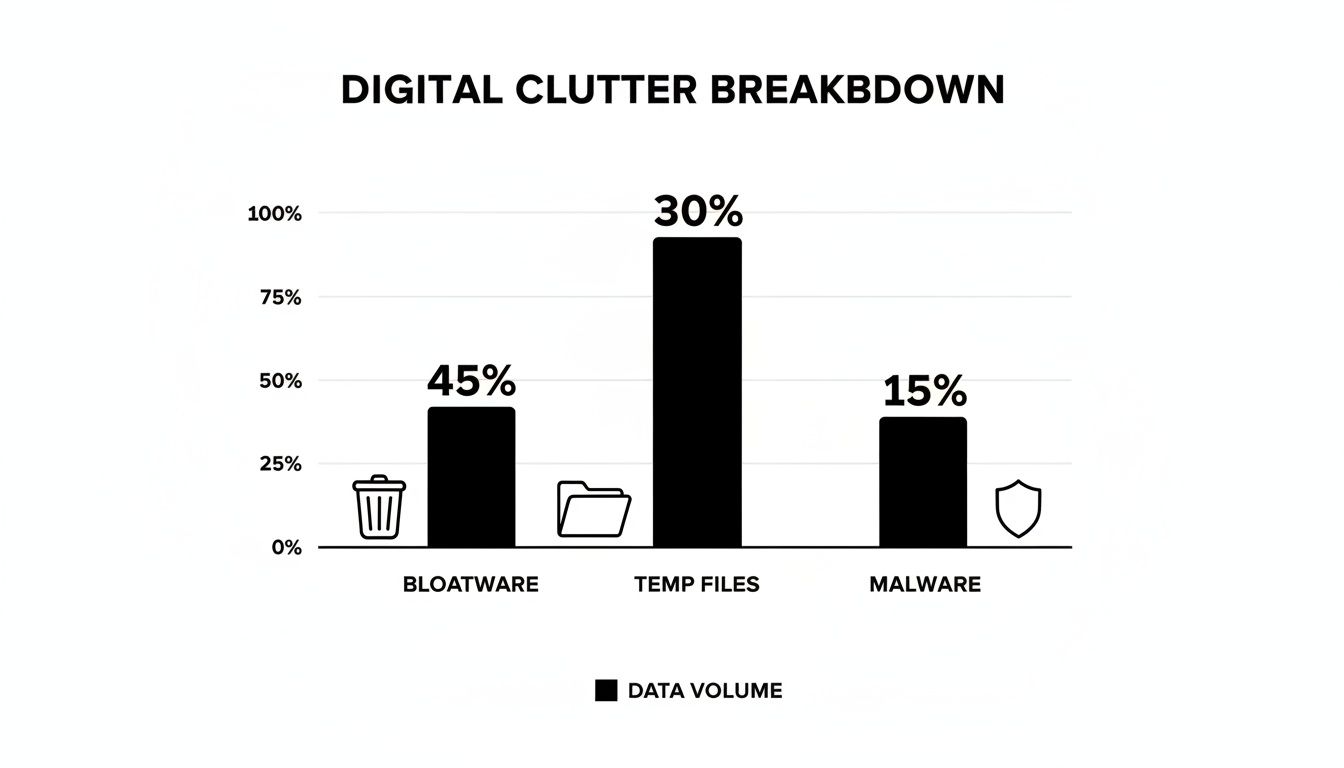
As you can see, things like bloatware and temporary files clog up your system. Clearing these out is a great first step, but pairing that cleanup with a hardware upgrade delivers the ultimate performance boost.
To give you a clearer idea of what to expect, here’s a look at how an SSD stacks up against a traditional HDD in everyday use.
HDD vs SSD Real-World Performance Comparison
This table breaks down the typical speed improvements you'll see after upgrading from a standard Hard Disk Drive to a Solid-State Drive. The differences are night and day.
| Performance Metric | Traditional HDD | Modern SSD | Typical Improvement |
|---|---|---|---|
| Boot Time | 1-3 minutes | 15-30 seconds | 4-6x faster |
| App Launch | 10-20 seconds | 2-5 seconds | 3-5x faster |
| File Transfer (10GB) | 3-5 minutes | 30-60 seconds | 5-10x faster |
| General Responsiveness | Laggy, frequent delays | Instant, snappy | Massive improvement |
The numbers speak for themselves. Moving to an SSD completely changes the user experience, eliminating those frustrating waits and making your laptop feel fast and modern again.
More Memory (RAM) for Smoother Multitasking
Think of Random Access Memory (RAM) as your laptop's short-term workspace. It’s where all your currently running programs and open files live for quick access. If you're the kind of person who has a dozen browser tabs open while working on a spreadsheet and listening to music, you’re definitely pushing your RAM to its limits.
When you run out of RAM, your laptop has to start shuffling data back and forth to your much slower main storage drive. That’s when everything grinds to a halt. Upgrading from 4GB to 8GB, or even better, from 8GB to 16GB, gives your system the breathing room it needs to juggle multiple tasks without breaking a sweat.
While adding more RAM is fantastic for multitasking, it's the SSD that really transforms the entire feel of the machine from sluggish to lightning-fast.
Is It Worth Upgrading? Let's Look at the Numbers
Across Australia, slow performance remains a top complaint for laptop owners, even in a thriving market that saw 4.4% growth in Western Australia. From our experience at CTF, the hardware is almost always the bottleneck on older machines.
An SSD upgrade can slash boot times from several minutes down to just seconds. When you consider that Gateway Bank reported the average Aussie spends $1,460 annually on replacing electronics, spending a fraction of that to upgrade your existing HP EliteBook or Dell Latitude makes a lot of financial sense.
Checking Compatibility and Getting It Done
The good news is that most laptops from the last decade, including popular models like the Dell Latitude or HP EliteBook, are compatible with both RAM and SSD upgrades. A quick search online for your specific model number will usually tell you exactly what type of components you need.
And while you've got the case open, don't forget that dust is a major performance killer. It clogs fans and causes your laptop to overheat, which forces the system to slow itself down. We have a great guide that shows you how to clean your computer from dust—it's a crucial bit of maintenance that goes hand-in-hand with any hardware upgrade.
Advanced Tuning for Long-Term Performance
Getting your laptop back up to speed isn't a one-and-done fix. It's more like car maintenance—it needs a bit of ongoing attention to keep it running at its best. After you've cleared out the digital clutter and given the hardware a once-over, it's time to build a few good habits. These regular checks are what will keep your machine feeling responsive for years to come.
Your first line of defence is simply keeping everything up to date. Software and hardware developers are constantly releasing updates, and they aren't just for adding new features. These patches fix security flaws, squash bugs, and often deliver some serious performance improvements. An old graphics driver, for instance, can be the culprit behind everything from stuttering video to a frustrating lag across your entire system.
Most laptops are set to update automatically these days, but it never hurts to give it a manual nudge.
- For Windows: Head to
Settings > Update & Securityand hit ‘Check for updates’. - For macOS: Pop open
System Settings > General > Software Update. - For Drivers: It's a good idea to use the tools your manufacturer provides, like Dell Update or HP Support Assistant, to make sure all your hardware drivers are current.
Fine-Tuning Your System Settings
Beyond just updates, you can wring a bit more performance out of your laptop by tweaking a few settings under the hood. Think of it as telling your system to prioritise raw speed over pretty animations or aggressive battery-saving modes.
One of the easiest wins is adjusting the power plan. On a Windows machine, switching from "Balanced" to "High Performance" in the Control Panel can give you an instant boost, particularly on older laptops. This tells your processor to stop holding back to save power and give you everything it's got.
Another classic trick is to dial back the visual effects. Both Windows and macOS use slick animations and transparent windows that look great but eat up system resources.
Key Takeaway: Turning off the non-essential eye candy is a time-tested way to speed things up. In Windows, just search for "Adjust the appearance and performance of Windows" and choose "Adjust for best performance". On a Mac, you can find similar options to reduce motion and transparency in the Accessibility settings.
And if a recent change has really thrown a spanner in the works, knowing how to use System Restore in Windows can be a lifesaver, letting you roll the system back to a time when it was working perfectly.
The Overlooked Performance Killer: Dust
I've lost count of how many slow laptops I've seen where the real problem wasn't software, but plain old dust. Your laptop's fan is constantly pulling in air to cool the processor, but it also sucks in dust, pet hair, and lint. Over time, this gunk clogs the cooling vents and heatsink, effectively trapping heat inside.
When a laptop gets too hot, it has a built-in self-defence mechanism called thermal throttling. It deliberately slows down the processor to cool off. This is often why a laptop that felt zippy a year ago now chugs along whenever you ask it to do anything demanding. A good internal clean-out every year or so is crucial, especially in a dusty environment like Perth.
Looking ahead, maintenance is getting a whole lot smarter. By 2025, AI will be a huge part of laptop repairs in Australia, with predictive tools flagging performance issues—like an overheating CPU—before they become a major headache. Here at CTF in Balga, our team already uses these kinds of advanced diagnostics to precisely tune machines, often bringing back 70-80% of their original speed. It’s a fascinating shift, and you can learn more about AI's role in the repair industry to see where things are headed.
When DIY Fixes Aren't Enough for Your Laptop
So, you've spent hours meticulously working through all the software tweaks, you’ve decluttered your hard drive, and you might have even peeked inside the case. But your laptop is still moving at a snail's pace. It’s a frustrating spot to be in, but it’s more common than you think.
When your best efforts don't bring the speed you're after, it's usually a sign that the problem is a bit more stubborn than simple maintenance can handle. Sometimes, knowing when to put the tools down is just as important as knowing what to try in the first place. Pushing on with certain issues without the right know-how can, unfortunately, turn a fixable laptop into an expensive paperweight.
Signs That You Need a Professional
There are a few clear warning signs your laptop will give you when it’s time to call in an expert. Paying attention to these can be the difference between a simple repair and losing your data for good.
Keep an eye (and an ear) out for these tell-tale signs:
- Audible Clicking or Grinding: This is a classic symptom of a dying mechanical hard drive. Seriously, if you hear this, back up whatever you can immediately and then shut the machine down.
- Persistent Overheating: You've cleaned the vents and fans, but your laptop still feels hot enough to cook on or shuts itself down randomly. This could point to a failing fan, old thermal paste, or a more complex cooling system issue.
- System Crashes or the Blue Screen of Death: If frequent crashes or blue screens are still plaguing you after all the software updates and malware scans, you could be looking at failing RAM, a motherboard problem, or a deeply corrupted operating system.
- Failure to Boot: The machine just won’t start up properly, no matter what you do. This is a dead giveaway that there's a critical hardware or system failure that needs diagnosing.
Trying to tackle complex internal jobs, like swapping a motherboard component or tracking down a power fault, is a huge risk without professional diagnostic gear. One tiny slip can short out the entire system, turning a manageable repair into something far more expensive.
Your Local Solution in Perth
When you’ve hit that wall, it’s time to get some reliable help. For those of us in Perth and the northern suburbs like Karrinyup, Mirrabooka, and Westminster, you don't have to go far. Instead of wrestling with a problem that’s spiralling out of your control, bringing it to an expert means getting a proper diagnosis and a fix that actually lasts.
Here at CTF Repairs in Balga, we handle these exact issues every single day. Our team has the experience to quickly pinpoint what's really slowing your laptop down, whether it's a failing part or a tricky software conflict. We even offer same-day diagnostics to get you clear answers without the frustrating wait.
We can take care of everything from a professional internal clean-out to high-quality hardware replacements, and we’re always upfront with our pricing. Plus, every repair we do is backed by a solid warranty, so you have complete peace of mind. If you're searching for reliable computer repairs near you, our technicians are ready to get your laptop back up to speed, quickly and properly.
Common Questions About Fixing a Slow Laptop
Even after running through all the steps, you might still be scratching your head about why your laptop is so slow. It happens. We get a lot of the same questions at the workshop, so let's tackle some of the most common ones right now.
Why Is My Brand-New Laptop Already Slow?
This is a frustrating one, isn't it? You've just unboxed it, and it already feels sluggish. Nine times out of ten, the problem is bloatware. These are the pre-installed programs and trial versions that manufacturers load onto new machines, and they can hog resources right from the first boot.
Another culprit can be a buggy network driver. If your internet feels slow but your connection is fine, it's worth checking for an update directly from your laptop manufacturer's support site. A fresh driver can make a world of difference.
Is It Cheaper to Upgrade or Buy a New Laptop?
For most laptops under five or six years old, upgrading is almost always the smarter, more cost-effective choice. A simple RAM upgrade and, more importantly, a switch to a Solid State Drive (SSD) can give an older machine a new lease on life for a fraction of what a new one would cost.
The performance boost from an SSD alone is staggering. We often see it add years of usability to a laptop that the owner was ready to replace.
Our Expert Insight: We regularly see customers ready to drop over $1,000 on a new laptop when a $200-$300 hardware upgrade would solve every single one of their performance headaches. It's easily the most impactful and budget-friendly fix you can make.
Why Does My Laptop Slow Down When It Gets Hot?
That's a built-in safety mechanism called thermal throttling. When your laptop’s processor or other key components overheat, the system automatically slows everything down to prevent them from cooking themselves. It's a lifesaver, but it's also a clear sign something is wrong.
The most common cause? Dust. Over time, dust, pet hair, and lint get sucked into the cooling fans and block the air vents, trapping heat inside. A proper internal clean by a professional can get things running cool and fast again.
Can Too Many Files on My Desktop Slow It Down?
Surprisingly, yes! It's not a myth. Your computer has to constantly render every single icon and thumbnail on your desktop, and each one uses a tiny bit of graphics memory and processing power.
When your desktop is covered in hundreds of files and shortcuts, those tiny bits add up, contributing to a general feeling of sluggishness. Simply organising those files into a few folders can actually free up resources and make a noticeable difference.
If you've worked through these tips and your laptop is still lagging, it might be time to call in the experts. The team at CTF Mobile Phones & Computer Repairs offers professional diagnostics and reliable, same-day service to get to the root of any performance issue. Let us get your laptop running like it just came out of the box.
Find out more at https://www.ctf.com.au.