

Your ThinkPad was charging yesterday. Today, the battery icon sits there doing nothing, the charger feels fine in your hand, and the deadline on your screen doesn’t care whether the fault is the power brick, the cable, or the laptop itself.
That’s usually when people start guessing. They borrow a random USB-C charger, swap wall sockets, bend the cable near the plug, and hope for the best. Sometimes that works. Often it makes the diagnosis harder, especially with newer ThinkPads that can look simple from the outside but are picky about connector type, wattage, cable quality, and charger authentication.
A lenovo thinkpad charger isn’t just a spare accessory. For a lot of Perth students, tradies, office staff, and small business owners, it’s the difference between getting through the day and losing hours to a preventable fault. In Balga and nearby northern suburbs, dust, movement, and power issues all show up in repair patterns, so generic online advice rarely tells the full story.
The good news is that charger faults are usually diagnosable if you check them in the right order. You don’t need to start by buying parts. You need to identify what your ThinkPad requires, test what you already have safely, and know when a simple clean is enough and when the problem has moved beyond DIY.
That Sinking Feeling a Dead ThinkPad in Perth
It usually starts at the worst time. A uni assignment is due that night, a spreadsheet needs to be sent before lunch, or you’ve just opened the laptop at a client site and noticed the battery dropped instead of climbing. You plug the charger in again, look for the charge light, and get nothing useful back.
A lot of ThinkPad owners assume the charger has died because that’s the part they can see. That’s understandable. The adapter sits on the floor, gets wrapped around chair legs, lives in backpacks, and gets pulled out by the cable instead of the plug. But a dead-looking ThinkPad doesn’t always mean a dead charger.
In Perth, the local conditions matter more than people think. Fine dust gets into ports. Laptops spend half the week moving between office, car, classroom, and home. Chargers get mixed up between family members or workstations. By the time the machine stops charging, the underlying cause might be the adapter, the USB-C cable, the DC-in port, or a fault inside the laptop that only shows up under load.
What makes ThinkPads confusing
Older and newer ThinkPads can both be called “65W Lenovo chargers”, yet they may use different connectors and behave very differently. Some use Slim Tip. Others use USB-C Power Delivery. Some will accept a charger physically, then still refuse to charge properly because the cable or wattage is wrong.
Practical rule: If the connector fits but charging is slow, intermittent, or only works while the laptop is off, don’t assume compatibility. Fit and function aren’t the same thing.
The biggest mistake is rushing to replace the first part that looks suspicious. A charger can be healthy while the port is dirty. A port can be solid while the cable fails only when moved. A battery warning can point to power negotiation, not battery age.
That’s why the fastest path isn’t guesswork. It’s a clean identification first, then a methodical check from the wall socket to the adapter to the laptop port.
Decoding Your ThinkPad Charger Needs
A ThinkPad charger match is straightforward once you check the right details. In the workshop, the wrong replacement usually comes down to three things. Connector type, wattage, and output specs. Get those right first, and you avoid the common Perth walk-in problem where a new charger powers the laptop poorly, or does not charge it at all.

Identify the connector first
Two charger types show up on ThinkPads more than any others. USB-C and Slim Tip.
USB-C is the smaller oval port found on many newer ThinkPads. It relies on USB Power Delivery, so the charger and cable both matter. A cheap USB-C brick from a phone or tablet can fit perfectly and still leave the laptop charging slowly, refusing to charge under load, or flashing a warning about inadequate power. If you want a clearer explanation of why that happens, our guide to a fast USB-C charger breaks down the difference between physical fit and proper power delivery.
Slim Tip is Lenovo’s rectangular yellow-tipped connector used across many older ThinkPad models. It is less flexible than USB-C because the plug shape is proprietary, but it still has to match the laptop’s expected power output. A worn Slim Tip plug can also feel connected while making poor contact, especially after years of being pulled sideways in a bag or at a desk.
Do not guess from memory. Check the laptop port itself, then confirm the exact model number on the base sticker.
Check wattage before you buy
Many replacement attempts in Perth fail because someone borrows a charger from another Lenovo, sees the charging light come on, and assumes the match is good. Then the battery percentage drops during Zoom calls, Windows reports slow charging, or the laptop only charges properly while shut down.
Many ThinkPads use a 65W charger, but not all do. Some need more headroom, especially mobile workstation variants or systems running docked with heavier workloads. In real repairs, an underpowered adapter often creates symptoms that look like a battery fault or motherboard issue, even though the issue is simple. The charger cannot keep up once CPU load rises.
A quick workshop rule helps here:
- If the replacement wattage is lower than the original, expect charging problems
- If the connector fits but performance changes under load, check wattage next
- If the machine charges only while sleeping or off, suspect an under-spec charger or cable
That same logic applies to troubleshooting in general. The process is similar to how to fix common errors. Start with the exact requirement, then rule out mismatches one by one instead of replacing parts blindly.
Match the output on the label
The charger label tells you more than the plug shape does. On Lenovo adapters, look for the output voltage and amperage. Many ThinkPad chargers are marked 20V, with the amperage varying by wattage. Multiply volts by amps and you get the wattage.
Here is the practical check we use at the bench:
| What to check | What you want |
|---|---|
| Laptop model | Exact ThinkPad family and model from the base label |
| Connector | USB-C or Slim Tip, with no forcing or loose fit |
| Output voltage | Match the original charger specification |
| Amperage | Same as original, or higher if the voltage is correct |
| Wattage | Equal to the original requirement, or higher if Lenovo supports it |
One detail gets missed often. With USB-C ThinkPads, the cable can be the weak point. I have seen laptops come into the Perth shop with a perfectly good 65W USB-C charger and a poor-quality cable that could not reliably carry the required power. The owner blamed the battery because charging worked sometimes. The cable was the fault.
If the original charger is still available, read the label and match it directly. If it is missing, damaged, or you are not confident interpreting the numbers, use the laptop model number and get the charger matched properly before spending money.
Common Charger Problems and DIY Fixes
A ThinkPad that will not charge at 7:30 on a Perth workday usually gets blamed on the charger first. In the shop, that guess is wrong often enough that we test the whole charging path before recommending any part.
Check the power path in order
Start at the wall socket and work toward the laptop. That order saves time because a dead outlet, loose mains lead, or cracked cable can look exactly like a failed adapter.
Use this sequence:
- Wall socket. Test it with another device you know works.
- Mains lead. If the charger has a removable lead, push it firmly into the brick and check the Australian plug for damage.
- Adapter brick. Look for swelling, cracks, discoloured plastic, or a burnt smell.
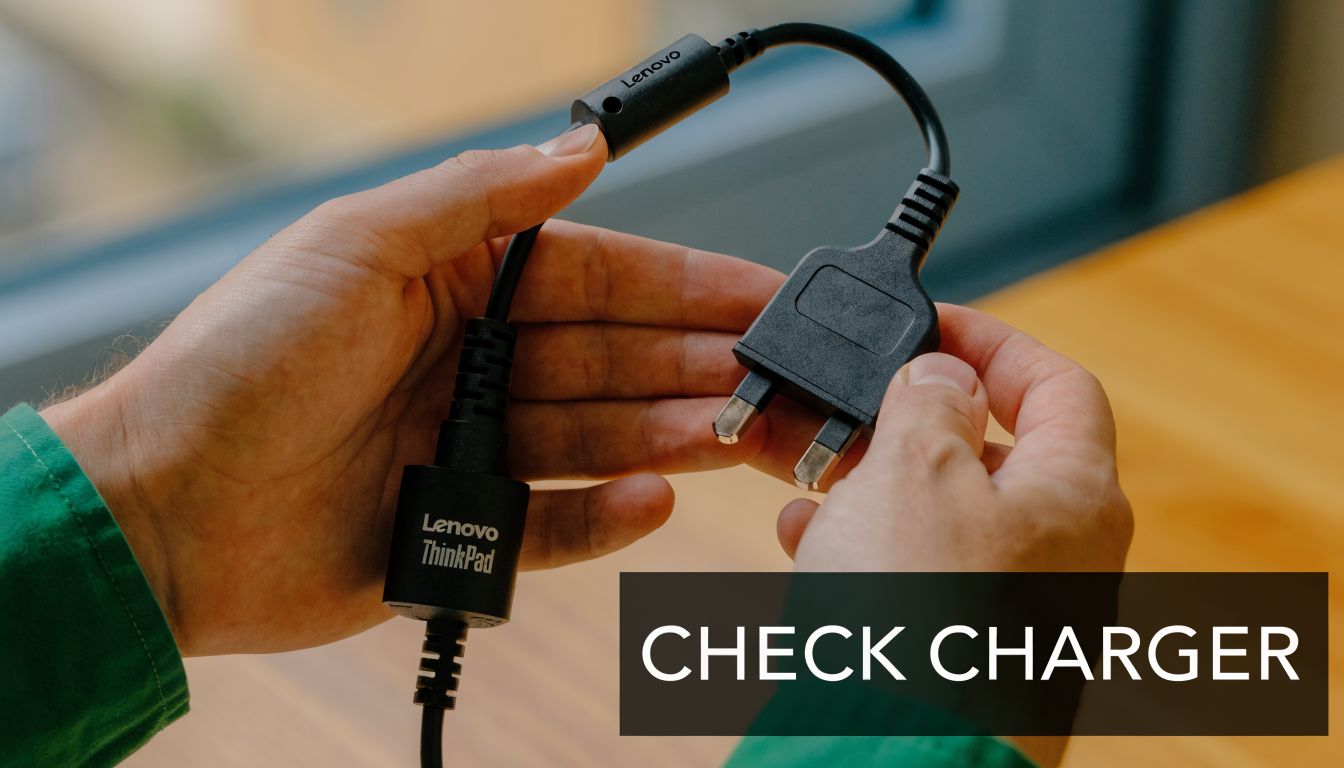
- DC cable. Check for fraying, flattened spots, sharp bends, or exposed shielding.
- Connector tip. Look for looseness, bent metal, or heat marks.
One pattern shows up regularly on older ThinkPad chargers. The cable breaks internally near the brick or near the laptop plug because that is where people wrap it tight for transport. If charging cuts in and out when that section moves, stop using it. Repeated flexing can turn an intermittent fault into a short.
Check the laptop port before buying a charger
Dust, lint, corrosion, and worn ports cause plenty of false alarms. I see this a lot on machines carried between site jobs, utes, warehouses, and home offices around Perth. Fine dust gets into bags, then into the charging port, and the owner assumes the adapter has died.
Use a torch and inspect the port carefully. You are looking for:
- Packed lint or dust
- Green or white residue
- Bent contacts inside USB-C
- A loose or damaged Slim Tip socket
- Darkened plastic or scorch marks
If you only see loose debris, power the laptop off and clean gently with a non-metal tool. Do not scrape hard inside a USB-C port. If there is corrosion, burning, or movement in the port itself, home cleaning is where many people make the repair more expensive.
If the plug feels loose, or charging starts and stops when the connector moves, the adapter may be fine. The socket may be the fault.
Use a light movement test
A careful movement test can tell you whether the problem is physical.
Plug the charger in and watch the charging light or battery icon. Move the connector slightly side to side. Keep it gentle.
- Charging stays stable. The connection is probably sound.
- Charging drops in and out. Suspect the plug, the port, or fractured solder joints on the DC-in side.
- No charging at all. The fault could still be the charger, the port, the battery circuit, or the motherboard.
Do not hold the plug at an angle to make it charge. That is a fault confirmation, not a fix.
USB-C models have one extra weak point
With USB-C ThinkPads, the adapter is only part of the chain. The cable matters too. A poor cable may charge a phone and still fail with a laptop because laptop charging needs higher, stable power delivery.
At the bench, I test with a known-good USB-C cable rated for laptop charging before I condemn the adapter. That simple swap has saved plenty of customers from buying the wrong part. It is common with online charger bundles sold cheaply into Australia, where the brick looks acceptable but the included cable is the actual problem.
To see a general fault-finding process in action, this video gives a useful visual reference before you start opening anything or ordering parts.
What to do at home, and when to stop
Most DIY checks are simple and safe if you stay on the outside of the machine. Confirm the outlet works. Confirm the charger and cable show no visible damage. Confirm the port is clean and intact. If possible, test with a known-good compatible charger or cable.
That process matters because random part swapping creates confusion fast. If you also have software issues or startup errors after a power event, the same logic applies. Change one variable at a time. For broader troubleshooting discipline, guides on how to fix common errors follow the same method.
If the port is loose, the charger gets unusually hot, the laptop only charges in one position, or the machine still will not charge with a known-good adapter, the fault has moved beyond basic DIY. At that point, proper bench testing is the smarter option. For ThinkPad-specific help, CTF offers a practical Lenovo laptop fix service that checks the charger, port, and board together instead of guessing.
Safe Replacement and Compatibility Secrets
Buying the cheapest replacement is usually what creates the second repair.
The hard part isn’t finding a charger that turns on. It’s finding one that charges properly, stays stable under load, matches Australian power requirements, and doesn’t create intermittent faults that waste days of your time.
Genuine versus cheap replacements
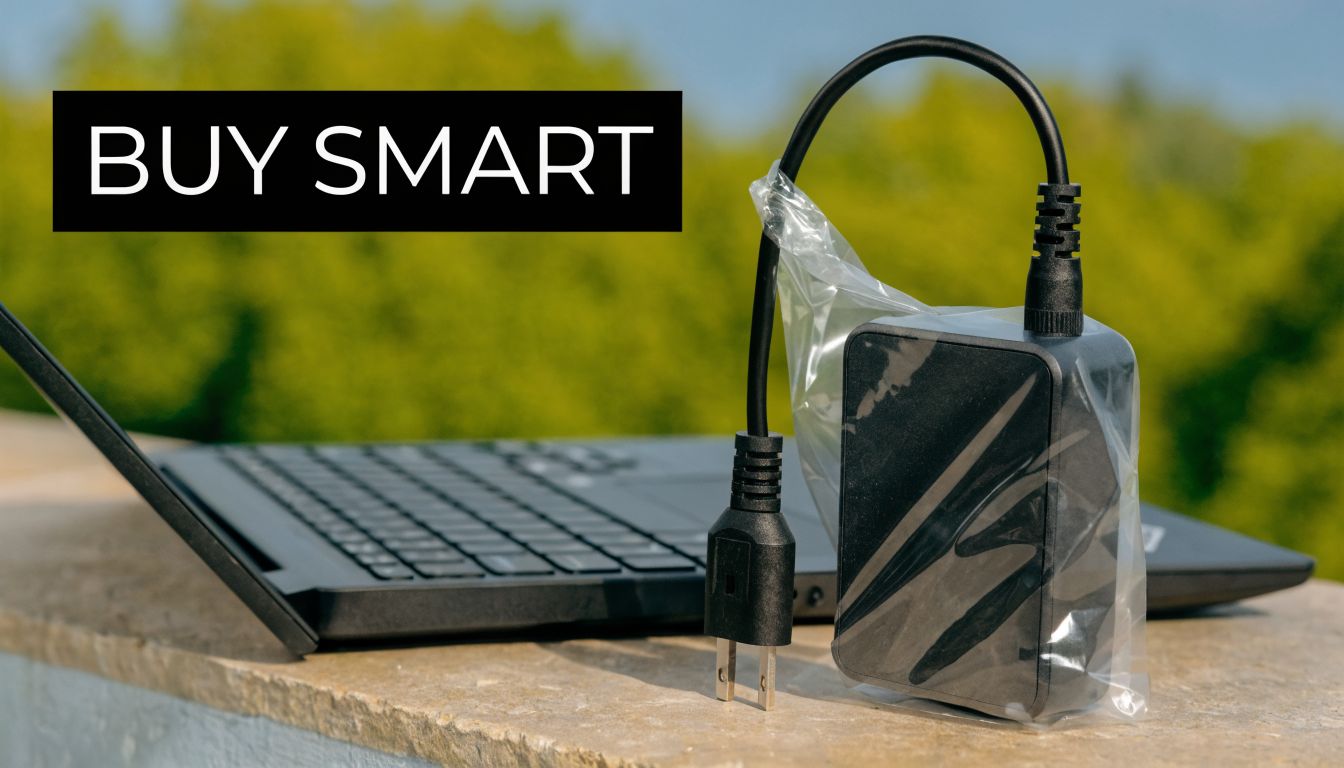
A genuine Lenovo charger usually costs more for a reason. The connector fit is right, the output profile is consistent, and for USB-C models the power negotiation is less likely to become the hidden problem.
Cheap third-party units vary a lot. Some are acceptable. Some are only acceptable on paper. The label may claim the right wattage, but real-world charging stability depends on the adapter internals, the cable, and whether the device negotiates the correct power profile cleanly.
Here’s the practical comparison:
| Option | What works | What goes wrong |
|---|---|---|
| Genuine Lenovo charger | Best fit, proper negotiation, safer bet for business use | Higher upfront cost |
| Quality certified third-party charger | Can be fine if specs genuinely match | Compatibility can still vary by model |
| No-name charger or cable bundle | Tempting as a quick fix | Higher risk of unstable charging and repeat faults |
The Australian compatibility traps
Verified data on Lenovo charging issues in Australia highlights two local problems that get missed often. Generic USB-C cables often fail E-Marker chip authentication, causing 22% of intermittent charging issues, and 12% of charger failures after storm surges in suburbs like Kingsley and Greenwood are caused by a blown AU-specific 240V input fuse (Lenovo charging compatibility note).
That explains why some chargers seem to work “sometimes” and fail “randomly”. The adapter may not be fully dead. The cable may not be properly recognised. Or the charger may have suffered mains-side damage that isn’t obvious from outside.
Workshop habit: If a USB-C ThinkPad charges on one cable but not another, don’t call it fixed until it’s tested under normal use. Low-grade cables can behave well for a few minutes and fail once the laptop asks for sustained power.
Wattage warnings aren’t always a fault
This matters with mixed-model households and office setups. One person has a smaller ThinkPad, another has a higher-power model, and chargers get swapped. The lower-wattage adapter may still connect, but the laptop can warn about slow charging or refuse to keep up while running.
That doesn’t automatically mean the battery is damaged. It often means the laptop is correctly detecting that the incoming power is below what the machine expects. That’s why the right buying question isn’t “Will it fit?” It’s “Will it meet this model’s actual power demand in normal use?”
In Australia, you also want a charger suited to local mains input and proper plug standards. If you’re buying online, check that it’s intended for AU use rather than relying on an adapter plug hanging off a charger built for another region.
Warning Signs You Need Professional Repair
Some faults stop being charger problems the moment you notice them. Keep testing at that point and you risk taking a simple port issue and turning it into a board repair.

Stop immediately if you see these signs
Use this as a hard checklist:
- Burning smell from the charger or port means heat is building where it shouldn’t. That can be insulation failure, shorting, or internal component damage.
- Visible sparks when plugging in suggest a serious electrical fault, not a dirty connector.
- A loose charging port inside the laptop usually points to broken mounting or damaged solder joints.
- Heat concentrated near the port area can mean resistance, arcing, or board-level damage.
- No charging with a verified compatible replacement tells you the fault path has likely moved into the laptop.
Those aren’t “try one more cable” symptoms.
What those symptoms usually mean
A loose port can tear pads or stress the board over time. Burnt smell or scorching can indicate a failed component in the charger or on the motherboard input stage. Repeated connect-disconnect charging often points to a physical problem first, but once heat and instability are involved, internal damage becomes more likely.
Don’t keep plugging in new chargers to “see if one works”. If the laptop has an internal short or damaged port, each attempt increases the risk of further damage.
When DIY becomes expensive
People often stop at the wrong point. They see no charging, buy another adapter, then another cable, then start forcing the connector angle until the port loosens further.
A good line to draw is this: if you’ve checked the outlet, inspected the charger, cleaned visible dust safely, and tested with a known-good compatible setup, the next step is proper bench diagnosis, not more shopping.
Professional testing matters because the next layer is electrical, not visual. That’s where input rail testing, connector continuity, and board inspection separate a charger fault from a laptop fault quickly.
Why Perth Trusts CTF for ThinkPad Charger Issues
A typical Perth charger job starts the same way. The laptop is flat before a meeting, someone has already bought a cheap replacement online, and the ThinkPad still will not charge. By the time it reaches our bench, the key question is no longer “which charger do I buy?” but “did the fault stay in the charger, or has it moved into the laptop?”
That distinction matters because ThinkPads are usually worth fixing properly. In our workshop, plenty of charger complaints turn out to be port wear, contamination from dust and lint, damage from being used on-site and in vehicles, or a replacement adapter that looks right but does not negotiate power correctly on Australian mains. Perth users deal with a mix of home office setups, FIFO travel, school bags, and jobsite use. Those patterns leave clues, and generic online advice usually misses them.
Local experience shortens the diagnosis.
A shop that sees Lenovo business laptops every week gets quicker at separating a bad adapter from a damaged USB-C charging circuit or a cracked DC-in connection on older models. That saves time and money because the fix is targeted from the start, instead of replacing parts by guesswork. It also matters for safety. We regularly see aftermarket chargers with poor strain relief, incorrect output behaviour, or plugs that fit loosely enough to cause heat at the port.
Trust is built on how the repair is handled. Clear fault isolation, sensible part selection, and a warranty matter more than sales language. The same idea sits behind brand reputation marketing online. Reputation comes from consistent results people can verify.
For ThinkPad charger issues, Perth customers usually care about four practical outcomes:
- The actual fault is identified before money is spent on the wrong part
- The replacement charger or repair suits the exact Lenovo model and Australian power requirements
- The repair is reliable enough for work, study, or travel
- Turnaround is local, so the laptop is not off the road for days while parts guesses continue
That is why customers book Lenovo laptop repairs in Perth with us instead of relying on trial-and-error replacements. We test the charger, the cable, the port, and the board input path as a system. If the problem is simple, we say so. If the charging fault has already damaged the port or power circuit, we say that too.
The people who benefit most from that approach are the ones who cannot afford downtime. Small business owners. Students mid-semester. Office staff with one machine tied to accounts, quoting, reports, or remote access.
A proper diagnosis keeps the repair straightforward and prevents more damage from repeated plugging, forcing connectors, or using the wrong adapter again.