
We’ve all felt that stomach-drop moment when a file disappears. The real solution, however, isn't frantic searching; it's having a plan before things go wrong. Learning how to back up your computer files is about choosing a method that works for you—whether that’s an external drive or a cloud service—and then setting it on autopilot. This one habit is your only real defence against losing your digital life.
Why Your Files Are More Vulnerable Than You Think
It's easy to get complacent and think your data is perfectly safe tucked away on your computer's hard drive. The reality? Your files face a whole host of threats that go way beyond just accidentally hitting 'delete'. From a sudden hard drive failure during a sweltering Perth summer to the classic dropped laptop, the risks are more common than you'd imagine.
Think about what's at stake. Years of irreplaceable family photos, the final draft of your uni thesis, or all the invoices for your small business. The cost isn't just about money; it's about losing memories, countless hours of work, and your peace of mind. That’s why a solid backup strategy isn't just a tech chore—it's essential.
The Unseen Dangers to Your Data
The most common threats to your files are the ones that strike without warning.
- Hardware Failure: Hard drives and SSDs don't last forever. One day they work, the next they can just die, taking all your data with them.
- Software Corruption: A buggy app update or a random system crash can scramble important files, leaving them completely unreadable.
- Malware and Ransomware: This is a big one. Malicious software can lock up your files and demand payment to get them back. Our guide on how to remove a virus from your computer covers the cleanup, but a backup is your ultimate escape plan.
- Accidental Deletion: We're all human. A simple slip of the finger is all it takes to wipe out a crucial folder for good.
This isn't just fear-mongering; it's happening all the time. The latest data shows a massive gap between how safe we think our files are and the actual risks involved.
A shocking 48% of Australians have lost data because of a device failure, and 54% of local businesses aren't confident they could recover after a data breach. You can read more about these Australian backup strategy findings.
This really brings the problem home. Too many of us aren't as prepared as we need to be. Once you understand the genuine risks, you can see why taking a few minutes to set up a proper backup plan is one of the smartest things you can do.
Choosing Your Backup Strategy: Cloud vs. Local
When it comes to backing up your computer, the first big decision is where to store your files. It really boils down to two main camps: local backups, which usually means an external hard drive you plug in, and cloud backups, where your files are zipped over the internet to a secure server.
There’s no single “best” answer here. The right choice depends entirely on how you use your computer. For instance, a photographer handling thousands of massive photo files needs the sheer speed of a local drive to move data around quickly. But a writer who works from home one day and a café the next needs the flexibility of the cloud to grab their documents from anywhere.
To get a quick sense of where you stand, this flowchart nails the core question every computer user should ask themselves.
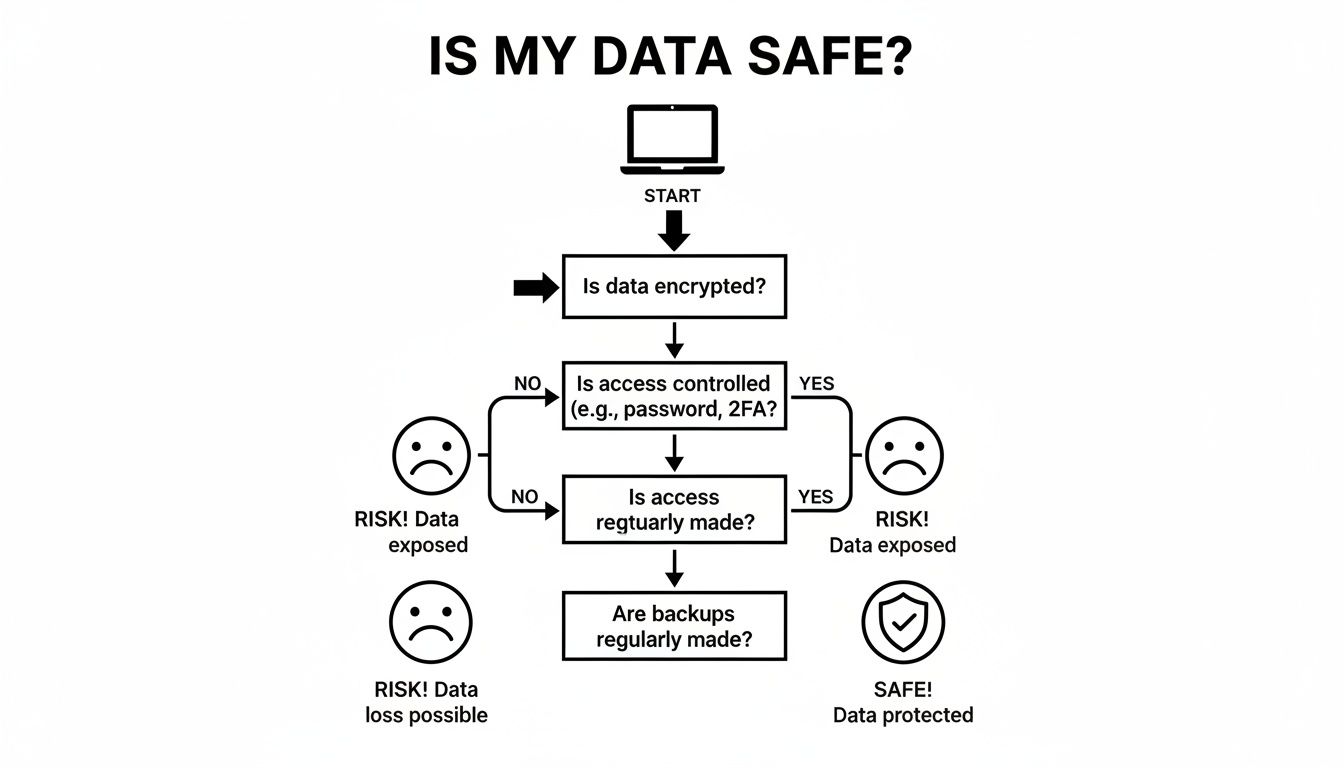
If your path leads to the sad face, don't panic! It’s just a clear sign that setting up a solid backup plan should be your next priority.
To help you decide, let's break down the pros and cons.
Local vs Cloud Backup At a Glance
Here’s a quick comparison to help you decide which backup method best fits your needs, budget, and security requirements.
| Feature | Local Backup (External Hard Drive) | Cloud Backup (Online Service) |
|---|---|---|
| Initial Cost | One-time purchase of a drive. | Often free for basic storage, with monthly/annual subscription fees for more space. |
| Speed | Very fast. Ideal for large files and full system restores. | Depends on your internet connection. Can be slow for large uploads/downloads. |
| Accessibility | Requires physical access to the drive. | Accessible from any device with an internet connection, anywhere in the world. |
| Security | You have full physical control. Vulnerable to local theft, fire, or flood. | Managed by professionals with high-level encryption. Vulnerable to online threats. |
| Automation | Can be automated with built-in tools like Time Machine or File History. | Fully automated. Backups happen seamlessly in the background. |
| Best For | Photographers, video editors, users with massive files, or anyone needing fast restores. | Users needing access on multiple devices, frequent travellers, and disaster-proof protection. |
Ultimately, your choice depends on balancing convenience, speed, and security. Now let's dive deeper into what makes each one tick.
The Case for Local Backups
Local backups are the classic, time-tested approach. You buy an external hard drive, plug it in, and you’re in complete control. It’s your data, on your device.
The biggest win here is speed. Trying to transfer a 100 GB folder of family videos over a standard internet connection could take hours, if not days. With a direct USB connection to an external drive, it’ll be done in minutes. Restoring that data is just as quick, which is a lifesaver when you're on a deadline.
A local backup offers you a self-contained, offline copy of your digital life. This makes it immune to internet outages, service provider issues, or remote security breaches, giving you direct and immediate access when you need it most.
Plus, there are no ongoing subscription fees. You pay for the drive once, and that's it. This makes it a wonderfully simple and affordable solution for many people.
The Power of Cloud Backups
Services like Google Drive, OneDrive, and Dropbox have completely changed the game. Instead of keeping your backup in the same room as your computer, you’re storing it in highly secure, professionally managed data centres.
The key benefits? Accessibility and off-site protection. Your files are there for you on any device, anywhere you can get online. More importantly, if something terrible happens at home—a fire, flood, or even a break-in—your local backup drive could be lost right along with your computer. An off-site cloud backup means your precious data is safe and sound, miles away from the disaster.
This peace of mind is why the Australian cloud backup market is set to explode, growing from USD 93.0 million in 2024 to an estimated USD 415.2 million by 2030. It’s driven by the 84% of businesses and 93% of small companies that now rely on the cloud for robust protection.
The 3-2-1 Rule: The Best of Both Worlds
So, which one should you choose? The truth is, the experts don't pick one over the other. They use both. This hybrid strategy is called the 3-2-1 backup rule, and it's the gold standard for a reason.
Here’s how it works:
- Have at least three total copies of your data.
- Store these copies on two different types of media (e.g., your computer’s internal drive plus an external hard drive).
- Keep one copy stored off-site (this is where the cloud comes in).
This approach covers all your bases. You have your original files for daily use, a speedy local backup for quick restores, and a secure cloud backup for absolute disaster recovery. It gives you resilience against almost anything, from accidentally deleting a file to losing your entire office.
To dig deeper into the right approach for your specific needs, it’s worth understanding the ideal scenarios for Cloud Versus Traditional Backup Systems. By combining the speed of local backups with the security of the cloud, you get a truly bulletproof system.
Getting Your First Backup Started on Windows and Mac
Alright, let's move from theory to action. This is where the magic happens and your files get the protection they deserve. The good news is that both Windows and macOS come with fantastic, easy-to-use backup tools built right in. You don't need to spend a cent on extra software to get started.
These tools are designed to be "set and forget," creating a safety net that works quietly in the background without you having to think about it. I’ll walk you through how to flick the switch on these features, explaining each step so you can confidently set up your first automated backup. It’s a fundamental skill every computer owner should have.
And for the Linux crowd, don't worry, I haven't forgotten you. Tools like Déjà Dup offer a similarly straightforward experience, and you can usually find them in the software centre of most popular distros.
Backing Up on Windows with File History
Windows has a brilliant feature called File History. What I love about it is that it doesn't just save a single copy of your files; it saves different versions over time. Ever accidentally deleted a crucial paragraph or saved over a photo edit you wish you could undo? File History is your lifeline. Think of it as a personal time machine for your Documents, Pictures, and Desktop folders.
To get going, you'll need an external hard drive. Once you plug it in, Windows makes the rest pretty simple.
- Click the Start Menu, type in "Backup settings," and hit Enter.
- Look for the "Back up using File History" section and click Add a drive. Windows will automatically find your connected external drive.
- Just select your drive. That's it! File History is now on and will immediately start backing up your main user folders.
Seriously, it’s that easy. From this moment on, your PC will automatically scan for changes every hour and save new versions to that external drive.
Tweaking Your Windows Backup
The default settings are a great starting point, but you can easily fine-tune what gets saved. Maybe you have a vital project folder on another drive you want to include, or perhaps you want to exclude a massive downloads folder full of temporary files to save space.
- In that same Backup settings window, just click on More options.
- From here, you can change how often File History saves copies—the default is hourly, but you can adjust it.
- You can also add specific folders to the backup list or, just as importantly, tell it which folders to ignore.
The real power here isn't just that first backup; it's the ongoing, automatic protection. Once this is set up, you have an hourly snapshot of your work, giving you a rock-solid defence against accidental deletions or file corruption.
Taking a couple of extra minutes to customise these settings is a smart move. It ensures your backup is efficient and only focused on what truly matters to you.
Using Time Machine on macOS
For Mac users, the answer is Time Machine. It's famous for being incredibly simple and reliable. It creates a complete, bootable backup of your entire system. This is a game-changer because if your Mac’s main drive ever fails, you can restore everything—your OS, apps, settings, and files—onto a new drive and pick up right where you left off.
Just like with Windows, you'll need an external drive to get started.
Often, as soon as you plug in a new external drive, your Mac will ask if you want to use it with Time Machine. If it does, just say yes, and you're all set. If not, setting it up manually is just a few clicks away.
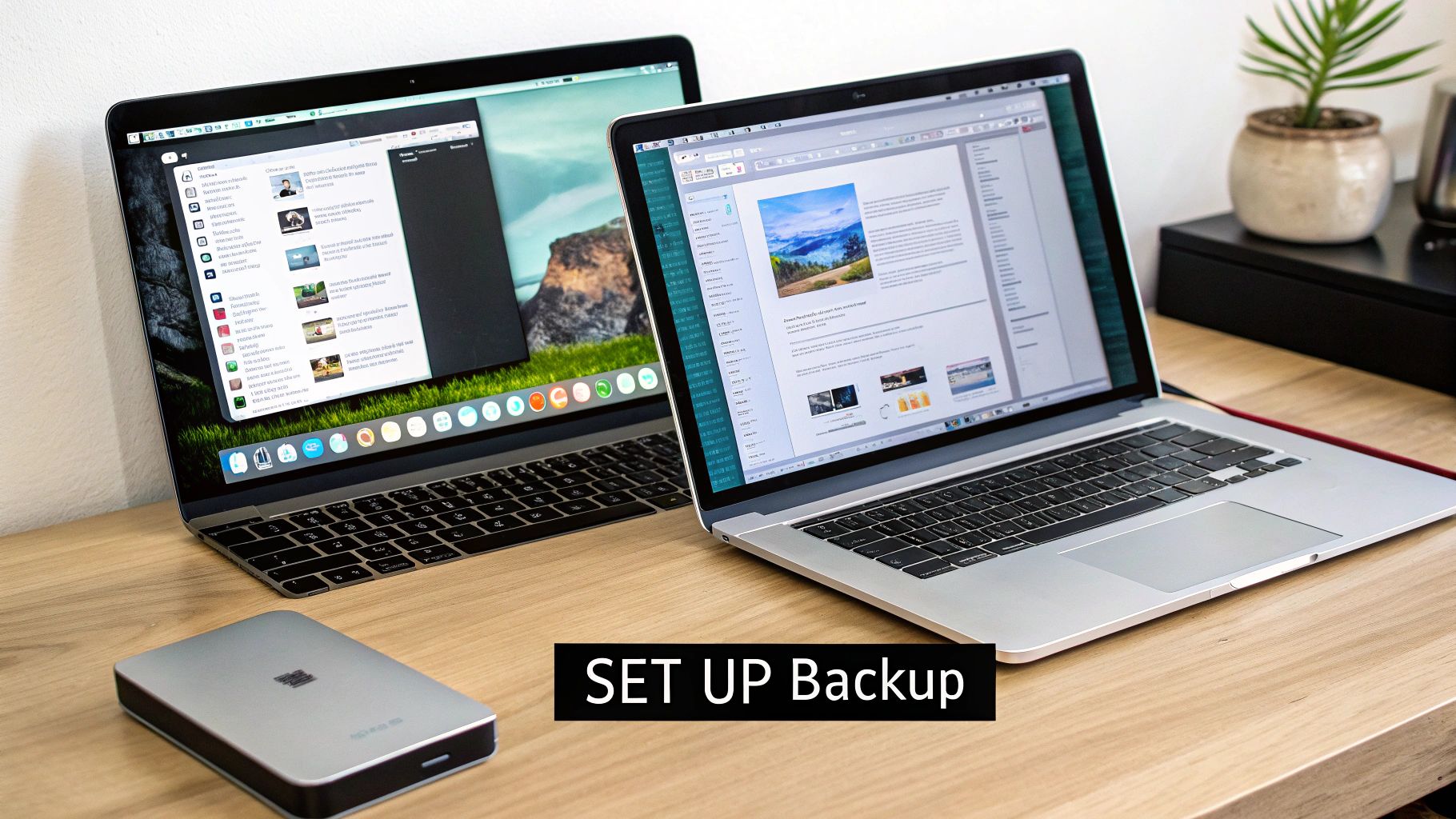
The preference pane is clean and simple. You just point Time Machine to your backup disk, and it handles the rest. Ticking "Back Up Automatically" ensures your Mac is always protected without you lifting a finger.
Kicking Off Your First Mac Backup
If you need to set it up manually, here’s how:
- Open System Settings (or System Preferences on older macOS versions).
- Click on General, then find and select Time Machine.
- Click Add Backup Disk, pick your external drive from the list, and confirm your choice.
- Time Machine will then ask if you want to encrypt the backup. My advice? Absolutely do this. It protects your data with a password, so if the drive ever gets lost or stolen, your files stay private.
The very first backup will take a while—it's copying everything, after all. But after that, it's much faster, as it only saves the files that have changed since the last run.
What About Linux?
The open-source community has you covered with some excellent, user-friendly backup tools. While die-hard users might stick to the powerful command-line tool rsync, most people will want a graphical interface.
- Déjà Dup: This is a crowd favourite for desktop distros like Ubuntu. It has a super simple interface that walks you through choosing folders to save, folders to ignore, and where to store the backup (on a local drive or even in the cloud with services like Google Drive).
- Timeshift: While Déjà Dup is for your personal files, Timeshift is more like macOS Time Machine. It creates snapshots of your entire system. If a software update or a settings change messes things up, you can roll your whole computer back to a time when it was working perfectly.
You can typically find both of these in your Linux distribution's software centre, making installation a snap. They give you the same peace of mind and automated protection that Windows and Mac users enjoy.
Keeping Your Backup Plan in Top Shape
Just setting up a backup is a great start, but it's the ongoing habits that really count. Let's be honest, a backup you made six months ago isn't much help if your hard drive gives up the ghost today. The real goal is to turn this one-off task into a reliable, automated system that works in the background without you even thinking about it.
It's a bit like a smoke alarm—you don't check the batteries every single day, you just trust it's ready to do its job. Your backup plan should give you that same peace of mind. This is where automation, regular checks, and a few smart security practices come together to create a safety net you can depend on.
Put Your Backups on Autopilot
Relying on your own memory to run backups is a recipe for disaster. Life gets busy, things get forgotten, and suddenly your last backup is months old. This is exactly why built-in tools like Windows File History and macOS Time Machine are so brilliant—they’re designed to be set and forgotten.
Once you’ve flicked the switch to enable automatic backups, the system takes over completely. It might save a new version of a document every hour or run a full backup while you sleep. The key is that it all happens without you lifting a finger, providing the consistent protection that is your best defence against data loss.
Forgetting to run a manual backup is one of the most common ways people lose their precious files. Automation takes human error out of the equation, making sure you’re protected even when it’s the last thing on your mind.
This hands-off approach turns a tedious chore into an invisible shield, constantly protecting your most recent work.
The All-Important Test Restore
A backup is completely useless if you can't actually get your files back from it. It's a surprisingly common nightmare scenario: someone goes to restore a critical file only to find their backup is corrupted or incomplete. The only way to avoid this is to test it.
Don't worry, this doesn't mean you have to wipe your entire system. It’s much simpler than that. Every few months, just try this:
- Find a non-critical file. Grab a photo or an old document from a few weeks back that you wouldn't mind losing.
- Delete it. Yep, actually send it to the bin and empty it.
- Try to restore it. Open up Time Machine or File History, find that exact file, and bring it back.
If the file reappears perfectly, you know your system is working. If you run into an error, you’ve just caught a problem you can fix before a real disaster strikes.
Secure Your Local Backup Drive
If you're using an external hard drive, you're holding a complete copy of your digital life in your hands. What happens if that drive gets lost or stolen? Without encryption, anyone can just plug it into another computer and browse through all your files.
Encrypting your backup drive is an absolute must. When you first set up Time Machine on a Mac, it will ask if you want to encrypt the disk. Always say yes. For Windows users, a powerful built-in tool called BitLocker does the same job, scrambling the data so it's unreadable without your password.
This one simple step ensures that a lost drive is just an inconvenience, not a massive security breach.
Keep Your Hardware Healthy
Your external backup drive is still a piece of hardware, and just like your computer, it needs a little TLC to last. Dust and heat are the enemies of all electronics.
Keeping the drive clean and in a well-ventilated spot can make a huge difference to its lifespan. Overheating from dust buildup can cause premature failure. In fact, many of the tips in our guide on how to clean your computer from dust apply just as well to external drives. A cool, clean environment is a cornerstone of any reliable backup plan.
Restoring Your Files and Knowing When to Call an Expert
This is the moment of truth. All that planning and setting up your backup system comes down to this: getting your files back when you really need them.
Having a backup is great, but knowing how to confidently restore your data when things go wrong is what really matters. Whether you’ve accidentally deleted a critical document or your entire hard drive has died, your backup is the safety net that brings your digital life back from the edge. Thankfully, the tools built into modern operating systems make this process surprisingly straightforward.
However, it's just as important to know your limits. Trying to recover data from a physically failing hard drive yourself can quickly turn a recoverable situation into a case of permanent data loss. Recognising the warning signs and knowing when to step back is a crucial part of any smart data protection strategy.
Bringing Your Files Back from the Brink
Restoring data shouldn't be a panic-inducing event. In most cases, both Windows and macOS have made it incredibly simple to find exactly what you need.
If you're using File History on Windows, you can open it up and browse a complete timeline of your files and folders. Just navigate to the version you need from a specific date or time, hit the restore button, and it's put right back where it belongs. It’s an absolute lifesaver for those "Oh no, I just saved over my report!" moments.
Over on a Mac, Time Machine gives you a slick, visual interface that lets you literally fly back through your backups. You can retrieve a single photo from last week, an entire project folder from last month, or even restore your whole system onto a brand new Mac.
The real goal of a good backup isn't just saving data—it's making the recovery process as painless as possible. A successful restore should feel like a minor speed bump, not a major catastrophe.
When to Stop and Call for Help
Sometimes, the issue isn't just a deleted file; it's a piece of hardware that's on its last legs. This is where a DIY approach can cause far more harm than good. If you notice any of these red flags, the best thing you can do is stop immediately and get professional help.
- Strange Noises: Is your hard drive making clicking, grinding, or loud whirring sounds? That's the sound of mechanical failure. Powering it down is critical, as every second it runs could be scratching the platters inside and destroying your data for good.
- Computer Won't Boot: If your machine is completely unresponsive, the problem could be anything from the power supply to the drive itself. Trying to force it to boot repeatedly can corrupt data or cause further hardware damage.
- Backup Errors: Don't ignore messages from your backup software about a corrupt source drive or unreadable files. This is often an early warning sign of a deeper issue that needs a proper diagnosis.
In situations like these, your next move should be to contact a professional. Here at CTF Mobile Phones & Computer Repairs, we have the specialised tools and clean-room environments needed for delicate physical data recovery. This is especially important for smaller devices, too. You can learn more about our professional mobile phone data recovery services for when your phone is damaged or inaccessible.
Thinking beyond just a single file, a truly comprehensive strategy involves a disaster recovery planning checklist. This helps you prepare for bigger scenarios, ensuring you’re ready for anything. Knowing when to trust an expert is the final, and most important, step in a truly bulletproof backup plan.
Your Top Backup Questions Answered
Setting up a backup system is a huge step, but it's natural to still have a few questions rattling around. Think of it like this: you've built the foundation, and now you're fine-tuning the details to make sure it's rock-solid. Getting these finer points right is what turns a basic backup into a reliable safety net you can truly count on.
We've pulled together the most common questions we hear from people just like you. Let's clear up that lingering confusion so you can be confident your digital life is protected.
How Often Should I Be Backing Up My Files?
For most of us, a weekly backup that runs on its own is a solid starting point. But this isn't a one-size-fits-all answer. If you're constantly working on critical files—think business reports, uni assignments, or a creative project—you really should be backing up daily.
The key word here is automated. It's just too easy to forget to run a manual backup. Life gets busy, and before you know it, weeks have gone by. An automated schedule takes human error out of the equation, ensuring you’re always protected.
What Size External Drive Do I Need?
Here’s a simple rule of thumb that has served our customers well for years: get a drive that is at least double the size of your computer’s storage. So, if your laptop has a 500GB hard drive, you should be looking for a 1TB external drive, minimum.
Why so much space? It's not just for today; it's for the future. This gives you plenty of room for:
- The first complete backup of everything on your computer.
- The many versions of files that get saved over months or even years.
- All the new photos, videos, and documents you'll inevitably create.
Running out of space is one of the main reasons automated backups fail, often silently. Giving yourself this buffer is cheap insurance against that problem.
Can I Use the Same External Drive for My Mac and My Windows PC?
Technically, yes, you can format a drive with a file system like exFAT that both can read. But from years of experience, I can tell you: please don't. It's a recipe for headaches.
Native tools like Time Machine on macOS and File History on Windows are built to work seamlessly with their own file systems (APFS and NTFS, respectively). Mixing them on one drive can lead to weird permission problems, slow performance, and even data corruption.
The safest, most reliable approach is to use a dedicated external drive for each computer. It’s a small investment that guarantees each backup system works exactly as it was designed to, without any conflicts.
What's the Real Difference Between a File Backup and a System Image?
This is a brilliant question because it gets right to the core of what you're trying to protect.
A file backup (what tools like File History or Time Machine primarily do) is all about your personal stuff: your documents, photos, music, and downloads. If your computer dies, the process is to reinstall Windows or macOS, then restore your personal files from the backup.
A system image, on the other hand, is an exact clone—a snapshot—of your entire hard drive at a specific moment in time. This includes the operating system, all your installed programs, your settings, and every last file. If you have to restore from an image, your computer goes back to precisely how it was when you made the backup. No need to spend hours reinstalling all your software. It’s the ultimate "undo" button for a catastrophic failure.
If your backup has failed or your hard drive is making strange noises, it's time to stop and get expert help. Don't risk making things worse. For professional and secure data recovery, contact the team at CTF Mobile Phones & Computer Repairs. Find out more on our official website.