

It's a special kind of panic, that moment your phone rejects your password. We've all been there. But the good news is you can learn how to unlock a phone without a password by using the official recovery tools built for this exact situation. In most cases, the quickest path involves remotely wiping your device using your Apple ID or Google account, which takes the lock screen with it.
That Sinking Feeling When You're Locked Out
Being locked out of your phone, especially somewhere like Perth, feels like being cut off from the world. Suddenly, your contacts, your calendar, and all those essential apps are just out of reach. It’s a jarring and stressful experience that can happen to anyone. Maybe you changed your PIN and the new one just won't stick in your memory, or a cracked screen has made typing impossible. It could even be a Face ID glitch that decides it no longer recognises you.
Whatever the cause, there's a clear way forward. This guide is here to cut through the tech-speak and give you straightforward, practical solutions for both iPhones and Androids. We'll walk through the main options so you can figure out what to do next without any added stress.
Common Causes for Being Locked Out
The reasons you find yourself on the wrong side of your lock screen are usually pretty simple, even if they're frustrating. I see these all the time at the shop:
- Forgotten Passcode: This is the big one. It's so easy to do, especially right after you've changed it.
- Damaged Screen: A badly cracked or unresponsive screen can make it physically impossible to punch in the right code.
- Biometric Failures: Your fingerprint sensor or Face ID can stop working due to dirt, damage, or a random software bug.
- Too Many Failed Attempts: Enter the wrong code too many times, and your phone will lock you out for security. It's doing its job, but it's not helpful when you're the one locked out.
This simple decision tree can help you visualise the first step in your unlocking journey, depending on what type of phone you have.
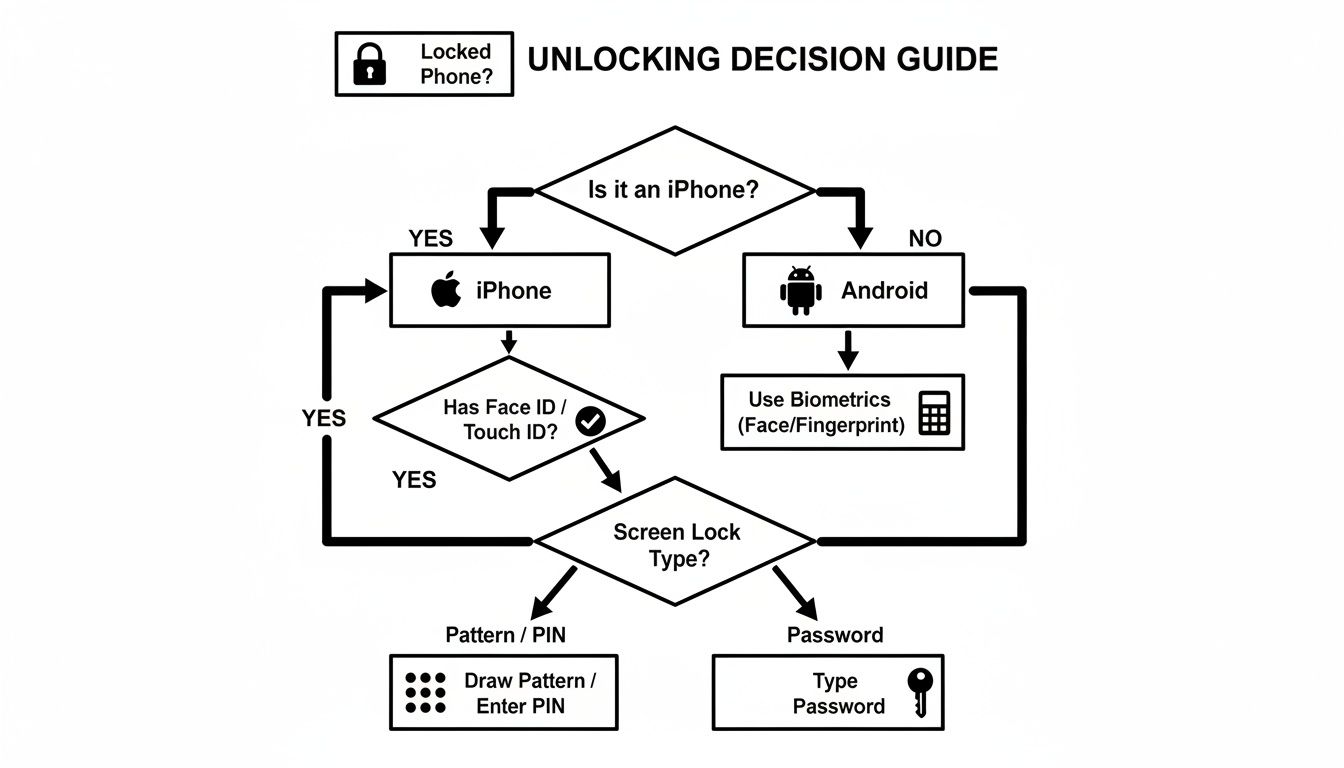
As you can see, your next move really depends on the ecosystem you're in—either Apple's or Google's.
It’s easy to see how disruptive a lockout can be when you think about how often we use our phones. The average iPhone user unlocks their device around 80 times per day. Here in Australia, where iPhones are incredibly popular, a forgotten PIN or a hardware failure can quickly turn into a major headache for anyone in Perth. For a closer look at the local market, check out this digital market report for Australia.
Your Phone Unlocking Options at a Glance
Here’s a quick summary of the main ways to unlock your iPhone or Android when you’ve forgotten the password, including what you’ll need and what to expect.
| Device Type | Primary Method | Requirements | Likely Outcome |
|---|---|---|---|
| iPhone | Find My iPhone (iCloud) | Apple ID, password, and Find My enabled | Phone is completely erased, lock screen removed |
| iPhone | Recovery Mode (iTunes/Finder) | Computer, cable, and Apple ID | Phone is completely erased, lock screen removed |
| Android | Find My Device (Google) | Google account, password, and Find My Device enabled | Phone is completely erased, lock screen removed |
| Samsung | Find My Mobile | Samsung account, password, and remote unlock enabled | Unlocks the phone without a factory reset |
Keep in mind that for most methods, "unlocking" actually means performing a factory reset. The big exception is Samsung's Find My Mobile service, which can often remove the lock screen without wiping your data—a real lifesaver if you have it set up.
Getting Back Into Your iPhone
If you're an iPhone user in Perth and you've found yourself locked out, don't panic. Apple has built a very secure ecosystem, and that includes a couple of official ways to get you back in. The trade-off for this security, however, is that both methods will wipe the data on your device to get rid of the forgotten passcode. This isn't a glitch; it's a deliberate security measure to keep your personal information safe from anyone who isn't you.
Your two main options are using the 'Find My' feature through iCloud or putting your iPhone into Recovery Mode. Which one you choose really depends on whether you had 'Find My' switched on before you got locked out and if you have a computer handy. Let’s walk through how each one works.
The iCloud 'Find My' Method
Let's say you're at home in Balcatta and your mind has gone completely blank on the new PIN you set yesterday. If you've got Find My enabled on that iPhone, this is by far the quickest way back in. You won't even need the phone itself for the first few steps.
All you need to do is grab another device with a web browser—your laptop, a tablet, even a friend's phone—and log into your iCloud account.
Here's how it's done:
- Head over to the iCloud website and sign in with your Apple ID and password. This is what proves the device is yours.
- Once you're in, look for and click on the "Find My" icon.
- A map will appear showing your devices. Select your locked iPhone from the list.
- You'll get a few options. The one you're looking for is "Erase iPhone."
When you select "Erase iPhone," it does exactly that—remotely wipes everything from your device, passcode included. Once it's finished, your iPhone will restart like it just came out of the box. From there, you can go through the setup process and restore all your data from a recent iCloud backup.
Using Recovery Mode With a Computer
But what if you never enabled 'Find My'? All is not lost. Recovery Mode is the next tool in your arsenal, but you'll need a Mac or a PC for this one. If you’re using a Mac with macOS Catalina or newer, you'll use Finder. For older Macs or any Windows PC, you’ll need to have iTunes installed and ready to go.
The most common hurdle here is getting the button sequence right to enter Recovery Mode, as it varies between models.
- iPhone 8 or later: Press and quickly release the Volume Up button. Do the same for the Volume Down button. Then, press and hold the Side button until the Recovery Mode screen pops up.
- iPhone 7 and 7 Plus: Press and hold the Side (or Top) button and the Volume Down button at the same time. Don't let go until you see the Recovery Mode screen.
- iPhone SE (1st gen), iPhone 6s, and earlier: Press and hold both the Home button and the Top (or Side) button together. Keep them held down until the Recovery Mode screen appears.
A common issue I see in the shop is the computer refusing to recognise the iPhone. It’s often a simple fix, like a dodgy cable or outdated software. Always use a genuine or MFi-certified cable and check for software updates on your computer before you start.
Once your computer finally detects the iPhone in Recovery Mode, a window will appear asking if you want to Restore or Update. You have to choose Restore. Your computer will then download the latest version of iOS and reset your phone to its factory settings, wiping the lock screen in the process. After it restarts, you can restore your apps and data from a backup.
Unlocking Your Android Smartphone
One of the great things about Android is the sheer variety of devices out there. But when you’re locked out, that variety can feel a bit daunting. There’s no single, universal key for every model, so the right method really depends on whether you're holding a Samsung, a Google Pixel, or another brand.
Let's walk through the most common and effective ways to get back into your Android phone.
Generally, you've got two main routes: using a remote service tied to your account (like Google's or Samsung's) or performing a manual factory reset using the phone's hardware buttons. Your best bet hinges on what brand of phone you have and, crucially, what security settings you had switched on beforehand.
Using Google's Find My Device
For the vast majority of Android users, your first port of call should be Google’s Find My Device. Think of it as the default Android recovery tool, built to locate, lock down, or wipe your phone from afar. For this to work, a few things need to be in place: your locked phone must be powered on, have an internet connection (Wi-Fi or mobile data), and have Find My Device enabled in its settings.
Grab another device—a computer or tablet will do just fine—and get started.
- Head over to the official Google Find My Device website.
- Log in using the exact same Google account that’s on your locked phone.
- You’ll see a list of your registered devices. Pick the one you're trying to access.
- You'll be presented with three choices: Play Sound, Secure Device, and Erase Device.
Selecting Erase Device is the one you need here. It does exactly what it says: it wipes everything on the phone, including your forgotten lock screen pattern or PIN. Once it’s finished, your phone will reboot as if it were brand new, ready for you to set it up all over again.
The Samsung SmartThings Find Advantage
If you're a Samsung owner, you're in luck. You have a fantastic, data-saving alternative called SmartThings Find. This service has a special Remote Unlock feature that is a genuine lifesaver. It can remove your phone's lock screen password, PIN, or pattern without wiping all your photos and files.
Of course, there’s a catch. For Remote Unlock to be an option, you need to have done two things before you got locked out:
- You must have signed into your Samsung account on the phone.
- You must have toggled on the "Remote unlock" setting in the phone's security menu.
If you had the foresight to do that, the fix is simple. Just log into the SmartThings Find website using your Samsung account, choose your phone from the device list, and hit the "Unlock" button. It's a brilliant feature, but it relies on that initial setup.
The Manual Factory Reset Method
What if the remote tools won't work? Maybe the phone is offline, or you never enabled the right settings. In that case, the fallback for nearly any Android device is a manual factory reset through Recovery Mode. This involves using the physical buttons on your phone to boot into a special maintenance menu.
The exact button combination can differ a bit from one manufacturer to another, but it's usually some variation of holding down the Power and Volume Down buttons together while the phone is turned off.
Crucial Tip: Be aware of Factory Reset Protection (FRP). This is a security layer that kicks in after a manual reset. To prove you're the real owner, you'll be forced to enter the username and password for the last Google account that was active on the device. If you don't know those details, the phone will remain a very expensive paperweight. Make sure you have your Google credentials handy before you go down this road.
What Happens to Your Data After an Unlock?
Let's be upfront: the biggest worry when you’re locked out of your phone isn't just getting back in—it's the very real possibility of losing everything. All those photos, contacts, and important notes could be gone in an instant. This isn't a glitch; it's by design. Modern phones are built to protect your data by erasing it if an unauthorised person tries to force their way in.
Think of it as a digital self-destruct sequence for your personal information. It’s a powerful security measure, which is why having a solid backup routine is your absolute best friend. A good backup turns a potential catastrophe into a manageable inconvenience.
Cloud Backups Are Your Safety Net
Your Apple ID or Google Account is the key to getting back on your feet after a factory reset. If you’ve been letting your phone back up to iCloud or Google Drive automatically, bringing your data back is surprisingly simple.
After the reset wipes the phone and removes the lock screen, the initial setup will ask if you want to restore from a backup. Just log in with your account details, and your phone will start pulling down all your apps, photos, and settings. It’s a bit like getting a brand-new phone but having all your stuff magically appear exactly where you left it.
A Quick Warning About Factory Reset Protection
Android users, listen up. There’s an extra layer of security you need to know about called Factory Reset Protection (FRP). If you reset your phone the old-fashioned way using the hardware buttons, FRP will kick in when it reboots. It will demand the username and password of the last Google account that was active on the device.
There's no way around this. If you can't provide those Google credentials, the phone becomes a paperweight. It’s an anti-theft feature that works, so make sure you know your login details before you even think about resetting.
This level of security is the standard now, especially here in Australia. Between February 2024 and February 2025, iOS accounted for roughly 54% of the mobile market, while Android held 44%. That means the vast majority of phones we see are recent models with serious security baked in. And with everyone holding onto their phones longer these days, we're seeing more hardware failures that lock people out. You can get more details on the Australian mobile market on Red Search.
If you’ve gone through a reset and realised you’ve lost data that wasn't backed up, it can feel like a punch to the gut. But don't panic just yet. It's often worth exploring trusted data restoration services to see what might be recoverable. And if you're local, our team provides expert help with reliable data recovery in Mirrabooka for all sorts of devices.
When You Need a Professional to Step In
While trying a few DIY tricks is often a good first step, some situations just call for an expert. It’s important to know when to throw in the towel and hand it over to a pro, especially when you risk making things worse.
Let’s say you’ve dropped your phone one too many times, and the screen is now a spiderweb of cracks and completely unresponsive. You might remember your password, but you literally can’t type it in. That's a classic sign you need someone who can tackle the physical damage first. We see this all the time at the shop—it's not a software problem, it's a hardware one.
Scenarios Demanding Expert Help
Sometimes, a locked phone is more than just a forgotten passcode. If you've exhausted the DIY options and are still stuck, you might need someone with specialised tools. For extremely high-stakes data, like cryptocurrency, there are even dedicated professional recovery services that can help.
Here at our Perth shop, we regularly deal with a few common headaches that home solutions can't fix:
- Activation Locks: Apple's iCloud Activation Lock and Google’s Factory Reset Protection (FRP) are serious business. If you don't have the original account details, that phone is essentially a brick without professional intervention.
- Carrier Locks: Bought your phone on a plan? It’s probably locked to that carrier’s network, which is a real pain when you want to switch to a better deal.
- Physical Damage: A busted touchscreen is the most obvious issue, but faulty buttons or a dead charging port can also stop you from performing the steps needed to unlock your device.
These aren't simple fixes. They demand specific tools and a deep understanding of how these systems work. Trying to force your way through them can often lead to permanent damage. Our technicians have the right gear and expertise to sort these issues out properly.
We treat your security and privacy as our top priority. That’s why we will always ask for proof of ownership before attempting to unlock any device. This isn't just our policy; it’s our commitment to providing a trustworthy and ethical service.
Our Professional and Ethical Approach
When you bring your device to a local Perth shop like CTF Mobile Phones & Computer Repairs, you’re placing a lot of trust in us. We get it, and we take that responsibility seriously.
Our process is straightforward: we combine technical know-how—like DFU restores and FRP checks—with a strict verification process. We need to be absolutely certain we’re helping the genuine owner. This means we'll ask to see a photo ID or proof of purchase that matches the device details.
It’s a simple, non-negotiable step that protects everyone. It ensures we're helping you, the rightful owner, and not someone with a stolen phone. Our goal has always been to provide a secure and reliable service for our community, from Balga to Mirrabooka.
If your problem goes beyond your phone, you can find info on our full range of services, including computer repairs near you, right on our website.
Your Top Phone Unlocking Questions Answered
When you're locked out of your own phone, your mind starts racing with questions. It's a stressful spot to be in, and a lot of the information out there can be confusing. We see people in this exact situation every day at our repair shop, so let's cut through the noise and answer the questions we hear most often.
Think of this as a straightforward chat about your options. My goal is to clear things up so you can figure out the best next step for you.
Will I Lose My Data if I Unlock My Phone?
I'll be upfront with you: for almost every modern smartphone, the answer is yes. It’s a tough pill to swallow, but wiping the device is a core part of its security design. Forgetting the passcode triggers a protocol where the only way in is to erase everything.
Both Apple's and Google's official recovery methods work this way. This is exactly why having a recent cloud backup is an absolute lifesaver. The one rare exception you might hear about is Samsung’s ‘SmartThings Find’ feature, which can unlock a device remotely, but only if you had the foresight to set it up long before you forgot your code.
Can a Repair Shop Get My Data Back?
In most password-lockout cases, no. A reputable shop like ours will use the same official, secure reset methods that you would. We simply don't have a magic key to get past the powerful encryption built into today's iPhones and Androids—and frankly, you wouldn't want us to. That encryption is what keeps your data safe from thieves.
However, the story changes if the problem is physical. Let's say you know your password, but the screen is so smashed you can't type it in. In that scenario, we can absolutely repair the screen, letting you enter your code and get to all your data without any need for a reset.
What’s This Factory Reset Protection I’ve Heard About?
Factory Reset Protection (FRP) is a crucial security layer on Android phones. It kicks in if someone tries to bypass the lock screen by performing a "hard reset" using the phone's physical buttons.
Once the phone reboots, it hits a wall. The setup process will demand the username and password for the last Google account that was active on the device. It's Google's way of making sure you're the legitimate owner. If you can’t provide those details, the phone stays locked, even after being completely wiped.
FRP is a security dead-end by design. Without the right Google credentials, the phone is basically a paperweight. Always, always make sure you know your Google login before you even think about attempting a manual reset.
I Bought a Second-Hand Phone That’s Locked. Now What?
This is a really tricky, and sadly common, situation. You can wipe the phone with a factory reset, but that's when you'll slam into an activation lock. On an iPhone, it's the iCloud Lock; on an Android, it’s the FRP lock we just talked about.
This lock requires the previous owner's Apple ID or Google account details to continue. If you can't get in touch with the seller to have them remove the device from their account remotely, there’s nothing you can do. The phone is unusable.
It’s a harsh lesson on the risks of the second-hand market. It also highlights why it's so important to properly prepare a device before you sell it. If you have an old device lying around, taking the right steps before you sell old phones for cash ensures the next owner doesn't end up in this mess.
If you're stuck on any of these issues and just want clear, honest advice, we're here to help. The team at CTF Mobile Phones & Computer Repairs has seen it all and can walk you through the safest and most effective solution for your specific problem. Visit us online at https://www.ctf.com.au to find out more or book a time to come in.