

Your controller dies at the worst possible moment. You’re lining up a final shot, halfway through a ranked match, or one hit away from beating a boss, then the low battery warning flashes and your DualSense goes flat.
That’s when one might start asking the same thing in slightly different ways. Do I need a better ps5 controller charger? Is my cable bad? Is the port dirty? Is the battery worn out? Or am I about to waste money replacing something that could’ve been fixed?
A lot of charging problems look the same from the outside. A controller that won’t charge, charges slowly, only charges at a certain angle, or dies too quickly can point to very different faults. The trick is to separate a simple charging setup issue from an actual hardware repair.
That Dreaded Flash The Gamer's Guide to Charging
One of the most common gaming frustrations isn’t lag or a bad patch. It’s losing power mid-session. The PS5 controller gives you a warning, but if you’ve been saying “one more game” for the last hour, that warning can arrive a bit too late.
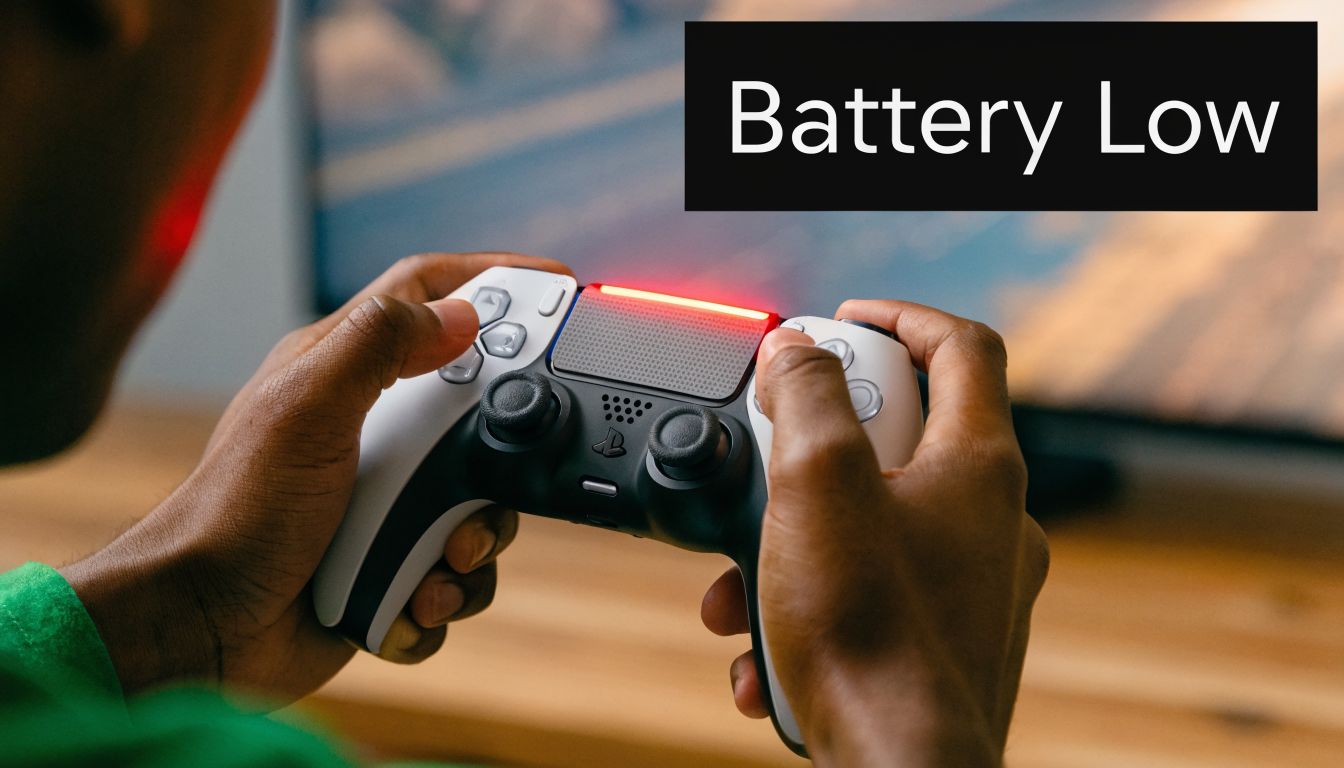
For most players, the first instinct is to grab any nearby cable and hope for the best. Sometimes that works. Sometimes it turns a small annoyance into a bigger problem, especially if the cable is loose, the charger is poor quality, or the controller port is already under strain.
There’s also the setup side of gaming that people ignore until something breaks. If you spend long sessions in front of a screen, comfort matters just as much as battery life. If you’re tightening up your gaming setup overall, this guide on blue light glasses for gamers is a useful companion read.
Why charging problems feel confusing
The DualSense doesn’t just rely on one part. Charging depends on the battery, the USB-C port, the cable, the power source, the console settings, and sometimes the charging dock. A fault in any one of those can make it seem like the whole controller is dead.
That’s why random guessing usually wastes time.
Practical rule: Start with the easiest item to replace, the cable or power source. End with the hardest item to repair, the controller itself.
What smart gamers actually want to know
Readers don’t need a deep electronics lecture. They need clear answers to practical questions:
- Which charger is safest: Console USB, wall adapter, or dock?
- Which option is fastest: Good for quick top-ups before a session.
- Which option reduces wear: Important if you charge every day.
- When should you stop DIY attempts: Because forcing a damaged port can make repair harder.
If you understand those four points, you’ll make better decisions and spend less money.
Exploring Your PS5 Controller Charger Options
Not every ps5 controller charger setup works the same way. Some are cheap and convenient. Some are kinder to the hardware. Some look tidy on a desk but create problems later.

Choosing the right option is a bit like choosing how to charge a device in the car, at home, or on the move. The “best” choice depends on whether you care most about convenience, desk organisation, portability, or long-term port health.
Console USB cable charging
This is the default method. You connect a USB-C cable to the PS5 and plug the other end into the controller. It’s simple, requires no extra gear, and works well for casual use.
The downside is wear. Every plug-in and unplug increases stress on the port over time. That’s not a disaster if you’re careful, but it matters if you game often, yank the cable out, or charge while playing with the lead bent sharply.
For many people, this setup is fine when:
- You only use one controller: No need for a dock.
- You want the cheapest option: Use the cable you already have.
- You don’t mind occupying a USB port: Good enough for basic charging.
Where it becomes annoying is shared households, long sessions, or setups where you keep reconnecting the controller every day.
The official Sony charging station
The official Sony DualSense Charging Station has a very different design. According to the Sony charging station manual, it uses pogo-pin contacts and takes 5.1V/2.8A (14.28W) input, charging two controllers in about 3 hours. The same source notes this design causes 30% less wear on controller ports after 500 charge cycles because it avoids repeated USB-C contact inside the port.
That matters more than many gamers realise. USB-C is convenient, but the port is still a physical wear point. A dock that lets the controller sit down onto contacts instead of taking a cable every time can help preserve the charging port.
If you rotate between two controllers, the official dock is often the neatest setup because it doubles as storage and reduces cable clutter.
This option makes the most sense when you:
- Own two DualSense controllers: The dock fits the way you already play.
- Want less port wear: Useful for heavy users.
- Prefer a tidy charging routine: Pick up one, put down one.
Third-party docks and wall adapters
This category is where people save money or create headaches. Some third-party chargers work well. Some don’t. The issue isn’t that “third-party” automatically means bad. The issue is build quality, electrical protection, and alignment.
A decent USB wall adapter gives you flexibility. You can charge away from the console, on a desk, or beside the couch. That’s handy if the PS5 is off or someone else is using the TV. A poor-quality dock, though, can introduce contact issues, unstable charging, or unnecessary heat.
Here’s a simple way to compare them:
| Charging method | Best for | Trade-off |
|---|---|---|
| Console USB | Basic charging with no extra spend | Uses PS5 port and adds cable wear |
| Official dock | Two-controller households and cleaner setup | Extra accessory to buy |
| USB wall adapter | Flexible charging anywhere | Quality varies a lot |
| Cheap third-party dock | Budget-conscious buyers | Can be unreliable if poorly built |
How to choose without overthinking it
If your current setup works and your controller charges normally, you probably don’t need to change anything. If you’re charging daily and the port already feels loose, moving to a dock can be a smart preventive move. If you travel or play away from the console, a good wall charger is more practical.
The bad purchase is usually the one made in frustration. A gamer sees “not charging”, buys a cheap dock, then finds that the underlying issue was a damaged port all along.
The Science of Charging Your DualSense Controller
The DualSense battery isn’t magic. It’s a small rechargeable lithium-ion battery that stores energy and releases it during play. Once you understand the basics, charging behaviour stops feeling random.
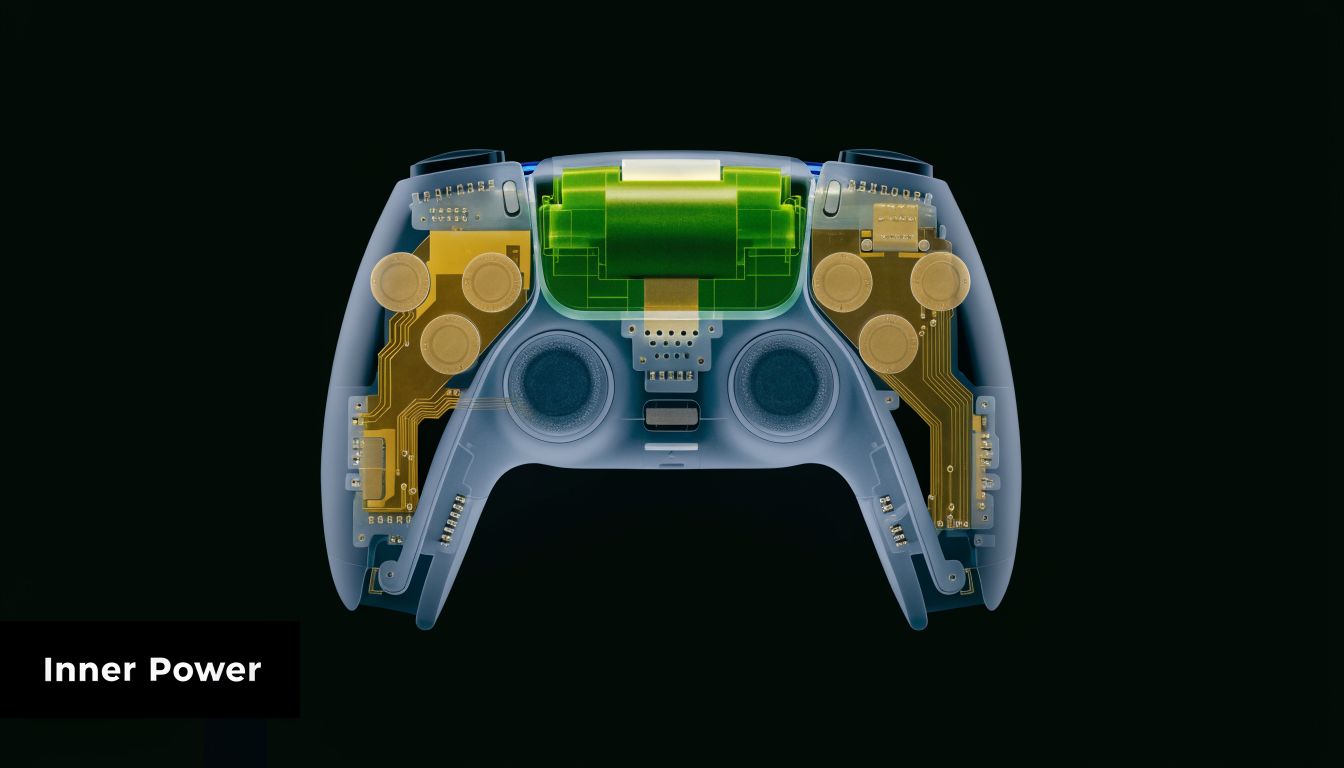
Think of the battery like a water bottle. Capacity is the size of the bottle. Charging speed is how quickly you can fill it. Battery ageing is what happens when the bottle gets less efficient over time.
What the battery size means
The DualSense launched in Australia on November 12, 2020 and includes a 1560mAh battery, with 25% better playtime than the PS4 DualShock 4 according to this charging guide covering the DualSense specs. The same source states a full charge takes 2 to 3 hours through the console’s 7.5W port, while a 20W USB-PD charger can reduce that to around 2 hours.
That’s why two players can say completely different things about charging speed and both be correct. One might be charging from the console USB port. Another might be using a faster wall adapter.
In everyday terms:
- 1560mAh battery: The energy tank inside the controller
- 7.5W charging from console: Steady but not especially fast
- 20W USB-PD charger: Faster top-ups when supported properly
Why cables matter more than people think
A charger is only part of the system. The cable still has to carry power consistently. If it’s loose, damaged, low quality, or worn near the connector, charging becomes intermittent and hard to diagnose.
If you want a plain-English breakdown of cable quality, connector fit, and what makes one cable behave differently from another, this article on understanding the right charging cable is worth a read. The same logic applies to USB-C gaming accessories.
For a broader look at fast charging standards and USB-C behaviour, this guide to understanding the fast charger USB-C helps make sense of why some chargers perform better than others.
Reading the light signals
The controller gives clues if you know what to look for. When charging through the PS5 in rest mode, a pulsing orange light indicates that charging is active, and the light turns off when the controller is full, as noted in the earlier source on DualSense charging behaviour.
That matters during troubleshooting. If the light never appears, the fault could be the cable, port, power source, or settings. If it pulses briefly and stops, that can suggest an unstable connection.
A short visual explanation can help if you prefer to see the process in action:
Why the same charger can feel different from day to day
Charging isn’t only about wattage. It’s also affected by heat, battery condition, and how empty the controller is when you plug it in. A quick top-up from half-full often feels much faster than charging from nearly dead.
A healthy controller with a good cable usually behaves predictably. An unhealthy one often charges inconsistently before it fails completely.
That inconsistency is what catches people out. They assume the issue is “fixed” because the controller charged once, when in reality the port or battery is already starting to fail.
Maximising Battery Life with Smart Charging Habits
Most battery wear doesn’t arrive as one big failure. It builds up through habits. Leave a controller flat for long periods, charge it in a hot room, keep stress on the connector, or let dust sit in the port, and the battery system ages faster.
For heavy players, that matters. Sony notes in its discussion of adaptive charging and battery care that intensive gamers can see 15% to 20% battery capacity loss per year, especially with frequent full-discharge cycles and heat. The same source says avoiding long periods at 100% charge and keeping the port clean helps extend lifespan, as outlined in Sony’s adaptive charging article.
Habits that help more than people expect
The biggest win is consistency, not perfection. You don’t need a lab setup. You just need to stop doing the few things that age batteries faster.
Good habits include:
- Top up before it’s completely flat: Deep discharges create more strain than moderate top-ups.
- Unplug when you remember: You don’t need to panic if it stays on charge sometimes, but don’t make permanent full-charge storage your routine.
- Keep the port clean: Dust changes how firmly the cable seats.
- Charge in a cooler spot: Heat is one of the quiet killers of battery health.
What heavy gamers should watch for
If you play for many hours most days, your controller gives warning signs before it becomes unusable. Runtime gets shorter. The battery indicator drops more quickly. Charging may still complete, but the controller won’t hold power the same way it used to.
That doesn’t always mean the battery is the only problem. Sometimes players misread a worn port as battery degradation because the controller only charges when the cable sits at a certain angle.
A few early warning patterns matter:
| Symptom | More likely issue |
|---|---|
| Shorter play sessions after a full charge | Battery wear |
| Charging only works when cable is held still | Port or cable issue |
| Controller gets unusually warm while charging | Charger, battery, or internal fault |
| Intermittent charging after dusty use | Dirty port contacts |
The smart way to think about battery care
Don’t treat your controller like a disposable accessory. It’s a wearable part of your setup, just like a headset or mouse. If you use it hard, it needs some basic care.
Workshop advice: The best battery-saving habit is the one you’ll actually keep doing. For most players, that means clean port, decent charger, no extreme heat, and fewer full drain cycles.
The practical goal isn’t to preserve every last bit of battery health forever. It’s to slow the decline enough that you avoid unnecessary repairs and get more reliable play time out of the controller you already own.
A Step-by-Step Guide to Fixing Charging Issues
When a ps5 controller charger setup stops working, don’t jump straight to “the battery is dead”. Start simple and rule things out one by one. Most charging faults become easier to identify when you follow a clear order.

Step 1 Check the obvious gear first
Swap the cable before you touch the controller. Cables fail far more often than people expect, especially if they’re bent tightly near the connector or used across multiple devices.
Try this basic test:
- Use another known-good USB-C cable that fits firmly.
- Change the power source from console to wall adapter, or the other way around.
- Watch for any charging light response immediately after connection.
If the controller suddenly starts charging normally, the problem was outside the controller.
Step 2 Inspect the USB-C port carefully
A PS5 controller port is small and easy to contaminate with pocket lint, dust, crumbs, or sandy debris. In Perth, that matters more than many gamers expect because fine grit can settle into the port and stop the cable seating properly.
Look into the port under good lighting. You’re checking for:
- Packed debris: Stops full insertion of the plug
- Bent internal pin area: Suggests physical damage
- Greenish residue or dull corrosion: Can indicate moisture exposure
- Loose feel when cable is inserted: Often means wear or structural damage
If the cable never clicks in firmly and feels sloppy, stop forcing it. Repeated pressure can turn a repairable port into a more complex one.
Step 3 Clean the port safely
This is the point where people either fix the problem in five minutes or make it worse. Don’t use metal objects. Don’t flood the port with liquid. Don’t jab blindly.
Use a gentle method:
- Power the controller off first: You want no active current running through the port.
- Use a dry, non-metal tool carefully: Lift compacted lint rather than pushing it deeper.
- Follow with short controlled air bursts if available: Keep it light.
- Re-test with a good cable: Check if the connection now seats properly.
If charging returns and stays stable, the fault was likely obstruction rather than internal damage.
Step 4 Reset the controller
Sometimes the problem isn’t physical at all. The controller can glitch and stop charging correctly or fail to communicate properly with the console about charging state.
Use the reset button on the back of the controller. Press it carefully with a suitable small tool, hold briefly, then reconnect and pair the controller again. If you’ve dealt with older PlayStation accessories before, this kind of reset flow will feel familiar. This related guide on a PS4 controller not charging walks through the same general logic of separating cable, port, and software issues.
Step 5 Check PS5 rest mode power settings
If the controller charges while the console is on but not in rest mode, the issue may be settings rather than hardware. Make sure the PS5 is configured to supply power to USB ports in rest mode.
If rest mode charging is disabled, the controller can appear faulty when it’s actually just not receiving power from the console while the system sleeps.
A quick checklist helps here:
| What you see | What to suspect |
|---|---|
| Charges while PS5 is on, not in rest mode | Console USB power setting |
| No charge from any cable or source | Port, battery, or internal board issue |
| Charges only after cleaning | Debris in port |
| Charges with one cable only | Cable fault |
Step 6 Know when to stop DIY
There’s a point where more home testing stops being productive. If the port is visibly damaged, the controller disconnects with the slightest cable movement, or charging remains erratic across multiple chargers and cables, the issue is probably internal.
That usually means one of these:
- Physical USB-C port damage
- Battery degradation
- Corrosion on internal contacts
- Board-level charging fault
At that stage, forcing another cable, buying random accessories, or trying rough DIY port repair usually increases the risk of a more expensive outcome.
Deciding Between Repair and Replacement in Perth
Once you’ve ruled out the easy fixes, the main question isn’t “how do I charge it?” It’s “what’s the smartest use of my money?”
That’s where a lot of gamers get stuck. A controller that won’t charge might need a simple port repair, a battery replacement, or a full replacement if the internal damage is too severe. Those are very different outcomes, and you don’t want to guess wrong.
What the local pattern tells us
In Western Australia, 35% of PS5-related repairs between 2023 and 2025 involved charging port faults or battery degradation, and Australia had over 1.2 million PS5 units sold by mid-2023, according to this report on PS5 controller wattage and repair demand. The same source says local Perth repair shops report 90% success rates on these fixes using genuine parts.
That tells you two useful things. First, charging faults are common. Second, they’re often repairable.
When repair usually makes more sense
Repair is usually the smarter option when the controller still works normally in every other way. If the buttons, sticks, triggers, and wireless connection are fine, replacing the whole controller can be unnecessary.
A repair-first mindset is strongest when:
- The port is loose or damaged: One targeted repair may solve it.
- Battery life has dropped badly but the controller is otherwise fine: A battery replacement can be more sensible than starting over.
- You’ve already tested multiple chargers and cables: That reduces the chance of misdiagnosis.
- You want to avoid accessory guesswork: Buying a dock won’t fix a damaged port.
When replacement may be the better call
Sometimes replacement is the cleaner decision. If the controller has several faults at once, such as drift, shell damage, trigger issues, and charging failure, putting money into repair may not be worth it.
A new accessory can also be the right move if your controller works properly and your only issue is convenience. For example, if you’re tired of charging through the console and want a tidier setup, a charging dock solves a workflow problem, not a repair problem.
The biggest mistake is buying a new charger to solve a damaged controller. The second biggest mistake is replacing a controller when the real fault is isolated and repairable.
A simple decision filter
Use this quick logic:
| Situation | Smarter move |
|---|---|
| Controller charges with some cables but not others | Replace cable or charger |
| Controller only charges at an angle | Inspect for port repair |
| Battery drains unusually fast but charging is stable | Assess battery condition |
| Controller has multiple major faults | Consider replacement |
| You just want easier charging for two controllers | Buy a charging dock |
If you need a proper hardware assessment rather than more trial and error, a specialist PlayStation 5 repair service is the practical next step.
Your Questions About PS5 Charging Answered
Can I use a phone charger for my DualSense?
Usually, yes, if it’s a decent USB-C charger and cable. The key is charger quality and proper power negotiation, not just the label on the plug. Cheap, poorly regulated adapters are the ones I’d avoid first.
Is it safe to leave the controller on a charging dock overnight?
For most normal setups, occasional overnight charging isn’t the end of the world. The bigger concern is making it your permanent habit in a warm environment, especially if the controller already runs hot or the dock is poor quality.
Can I play while charging?
Yes, you can. The practical downside is mechanical stress. If you play while the cable is plugged in and keep bending the connector, you increase wear on the USB-C port over time.
Why does my controller charge from the wall but not from the PS5?
That usually points to console-side settings, the console USB port, or the specific cable and port combination you’re using. Check rest mode USB power settings first, then test another cable before assuming the controller is faulty.
Is the official dock better than plugging in with USB-C every day?
If you use two controllers and charge often, it’s a strong option because it reduces repeated use of the USB-C port. That can be especially helpful for heavy players who want a cleaner routine and less physical wear.
What else should I upgrade in my gaming setup if I’m already fixing power and charging issues?
Audio is a big one. If your setup still relies on basic TV sound or an ageing headset, this ultimate guide to gaming headsets for 2026 gives a useful overview of what to look for.
What’s the clearest sign I need a repair, not a new charger?
A charger problem changes with the charger. A hardware problem stays with the controller. If you’ve tried multiple known-good cables and power sources and the behaviour is still erratic, the controller likely needs professional attention.
If your DualSense still won’t charge properly, CTF Mobile Phones & Computer Repairs can help you stop guessing. Their Perth team handles charging faults, battery issues, port damage, and console repairs with fast diagnostics and practical advice, so you can decide whether a repair or replacement makes the most sense for your setup.